WooCommerce slow on a large catalog? Fix the lookup tables, not HPOS
WooCommerce slow on a large catalog? Why HPOS won't fix it, how to spot stale product lookup tables, and the fix order that actually cuts query time.

Long Nguyen
Lập trình viên Fullstack · Kỹ sư AI · Nhà nghiên cứu
Why WooCommerce gets slow as the catalog grows
WooCommerce is not slow. WordPress stores products in a schema that was designed for blog posts, and that schema stops scaling somewhere between one and ten thousand SKUs.
A product is a custom post type row in wp_posts. Everything that makes it a product — price, SKU, stock, weight, gallery, visibility, backorder rules — is a key/value row in wp_postmeta. That is an EAV model bolted onto a CMS.
The row count compounds in a way most store owners never see:
| Catalog shape | Product posts | Approx. wp_postmeta rows |
|---|---|---|
| 800 simple products | 800 | ~25,000 |
| 10,000 simple products | 10,000 | ~320,000 |
| 2,000 variable products, 30 variations each | 62,000 | ~2,000,000 |
| 10,000 variable products, 30 variations each | 310,000 | ~10,000,000 |
The number that kills you is variations, not products. Every variation is its own product_variation post with its own meta rows. A store with 2,000 products and heavy variation counts is a bigger database problem than a store with 20,000 flat SKUs, and the owner of the first store usually has no idea.
Why indexes do not rescue you
The index on wp_postmeta covers post_id and a 191-character prefix of meta_key. It does not cover meta_value, because meta_value is a LONGTEXT column holding everything from a price to a serialized array.
So a query like “products under $50, in stock, sorted by price” cannot be served from an index. MySQL has to join wp_postmeta once per condition, materialize the whole matching set, then sort it. Three filters means three self-joins of a multi-million-row table on a single page load.
That is the root cause. Everything below is either removing those joins or hiding them.
Does HPOS fix a slow catalog? No, and here is why
This is the most common wrong answer on the internet for this problem, so it goes second.
High-Performance Order Storage moves orders out of the posts tables. Per WooCommerce's HPOS documentation, it writes order data into four dedicated tables — wc_orders, wc_order_addresses, wc_order_operational_data and wc_orders_meta — and has been the default for new installations since WooCommerce 8.2 in October 2023.
Notice what is missing from that list: products. HPOS does not touch wp_posts or wp_postmeta for a single product, variation, attribute or price. Enabling it will not change your category page by one millisecond of query time.
Where HPOS does help a large-catalog store
- Admin order screens and order search. Directly, and often dramatically.
- Indirectly, the product side. On a store with 200,000 orders, those orders were adding millions of rows to the same
wp_postmetayour product queries scan. Pulling them out shrinks the table every catalog query touches.
The half-migration that makes things worse
Compatibility mode keeps the posts tables synchronized with the HPOS tables. That is the correct setting while you verify plugin compatibility — and a bad place to park permanently, because every order write now happens twice and neither table shrinks.
Plenty of stores turn HPOS on, leave sync enabled, and conclude WooCommerce got slower. It did. Finish the migration: once synchronization has completed and nothing is broken, turn compatibility mode off under WooCommerce › Settings › Advanced › Features.
The two product lookup tables, and how to tell if yours are stale
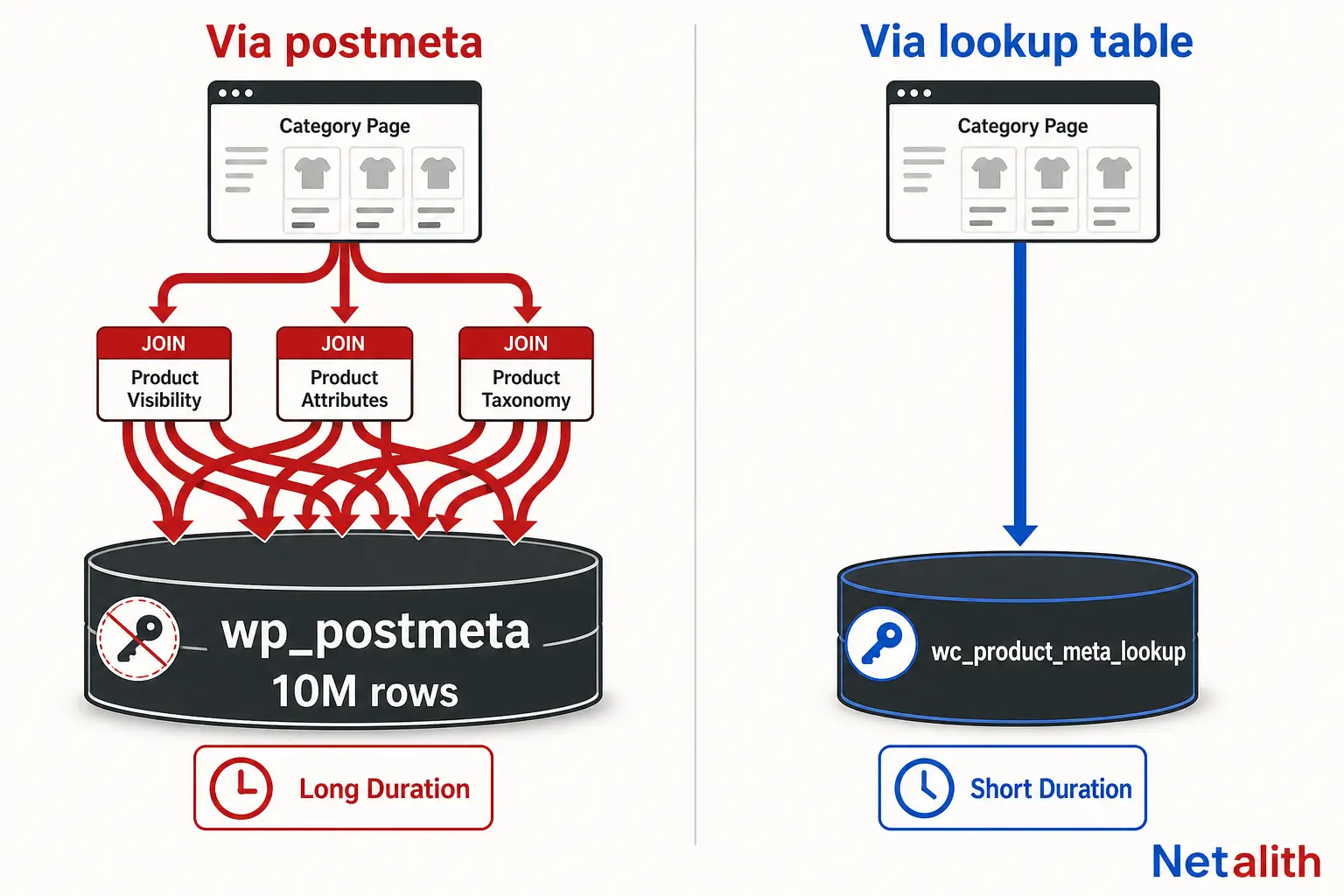
WooCommerce already shipped the fix for the catalog side. Two denormalized tables exist specifically so the storefront stops joining wp_postmeta:
| Table | Since | What it serves |
|---|---|---|
wc_product_meta_lookup |
WooCommerce 3.6 | One row per product/variation: min and max price, stock status and quantity, SKU, rating, total sales, on-sale flag. Powers sorting by price, popularity and rating, and most catalog filtering. |
wc_product_attributes_lookup |
WooCommerce 6.3 | Denormalized attribute terms per product and parent. Powers attribute filter widgets, including correct results for variable products with out-of-stock variations. |
The trap is that both tables fail silently. After a CSV import, a migration, a staging database copy, or any plugin that writes products with direct SQL, the lookup rows are missing or wrong — and WooCommerce quietly falls back to the wp_postmeta path. Nothing is logged. The site just gets slow.
Check it in one query
Run this against your database (swap wp_ for your actual table prefix):
SELECT
  (SELECT COUNT(*) FROM wp_posts
     WHERE post_type IN ('product','product_variation')
       AND post_status IN ('publish','private')) AS product_posts,
  (SELECT COUNT(*) FROM wp_wc_product_meta_lookup) AS meta_lookup_rows,
  (SELECT COUNT(DISTINCT product_id) FROM wp_wc_product_attributes_lookup) AS attr_lookup_products;
meta_lookup_rows should land close to product_posts. If it is a fraction of it, or zero, that table was never rebuilt and every sorted catalog page is paying the old cost.
Rebuilding them
- Meta lookup: WooCommerce › Status › Tools › Regenerate the product lookup tables.
- Attributes lookup: the same Tools screen has Regenerate the product attributes lookup table, but it runs through Action Scheduler — and if your queue is stalled (see below), it will sit at zero progress forever with no error.
On a large catalog, do it from the command line instead. WooCommerce ships a dedicated WP-CLI command set for the attributes lookup table:
# inspect the table state first
wp wc palt info

# regenerate synchronously, no scheduled actions involved
wp wc palt regenerate

# make sure the catalog actually reads from it
wp wc palt enable
Run the regeneration in a maintenance window. It writes heavily and on a six-figure variation count it takes a while.
The setting almost everyone has backwards
WooCommerce updates the attributes lookup table on every product save, whether or not the catalog is configured to read from it. If table usage is off, you are paying the full write cost on every import and every stock sync and getting none of the read benefit.
Check WooCommerce › Settings › Products › Advanced. Turn table usage on. While you are there, the Optimized updates option (WooCommerce 9.1 and later) makes lookup-table writes substantially cheaper during bulk operations — it applies when product data is stored in the posts table, which is the default.
Why the admin Products screen is slower than the shop
A very common support ticket: the owner says the site is unusable, the developer loads the shop page and it returns in 400 ms. Both are telling the truth.
Admin pages are never full-page cached. Every wp-admin/edit.php?post_type=product load runs the real queries, and that screen is unusually expensive:
- Status counts. The “All (12,480) | Published (11,902) | Draft (578)” row is a
COUNTacross the whole post table, per status. - The category dropdown enumerates every
product_catterm. Stores with thousands of auto-generated categories pay for all of them on every page load. - SKU search becomes
meta_value LIKE '%term%'againstwp_postmeta. A leading wildcard cannot use an index — it is a full scan, every time. - Autoloaded options load on every single request, admin and front end alike.
That last one is worth measuring before anything else, because it is cheap to check and frequently the single worst offender:
SELECT ROUND(SUM(LENGTH(option_value)) / 1024 / 1024, 2) AS autoload_mb,
       COUNT(*) AS autoloaded_rows
FROM wp_options
WHERE autoload IN ('yes','on');
Under 1 MB is healthy. I have seen WooCommerce stores at 14 MB, almost all of it abandoned plugin settings and expired transients that were written with autoload = yes. Every request on that site unserialized 14 MB before rendering a single byte.
A persistent object cache keeps transients out of wp_options entirely, which is one of the strongest arguments for running Redis on a large store — variable products in particular generate a wc_var_prices transient each.
Attribute filtering and the faceted URL explosion
Filter widgets are where a large catalog stops being a performance problem and becomes an SEO problem too.
Every filter combination is a distinct, crawlable URL. A 10,000-product store with eight filterable attributes and a price slider exposes a combinatorial space in the millions. Three consequences, in increasing order of how much they hurt:
- Each uncached combination is a cold query. Page caching does not help a URL nobody has requested before — and most of them are requested exactly once, by a crawler.
- Crawl budget drains into near-duplicate pages instead of your product pages.
- The price slider runs a
MIN/MAXacross the entire filtered set on every render. Throughwc_product_meta_lookupthat is cheap; throughwp_postmetait is a scan.
Practical approach, in order:
- Confirm the attributes lookup table is populated and in use (previous section). This alone changes filter queries from joins to indexed single-table reads.
- Allow one facet to be indexable where it maps to real demand (a brand, a size people search for).
noindexeverything beyond a single facet, and keep multi-facet URLs out of the sitemap. - Above roughly 20,000–30,000 SKUs with heavy faceting, move search and filtering out of MySQL entirely — Elasticsearch, Meilisearch or Typesense. WooCommerce stays the system of record; the catalog read path stops touching the posts tables.
Caching layers, in the order that actually helps
The standard advice is “install a caching plugin.” That is not wrong, it is just the fourth step presented as the first. Caching hides query cost from the second visitor. It does nothing for the first one, and on a faceted catalog almost every visitor is the first one to that URL.
| Layer | What it fixes | What it does not fix |
|---|---|---|
| Full-page cache (Varnish, nginx FastCGI, LiteSpeed) | Repeat anonymous hits on shop, category and product pages | Logged-in users, cart, checkout, admin, and every cold URL |
| Persistent object cache (Redis, Memcached) | Repeated queries and transients across requests; keeps transients out of wp_options |
A query that is expensive because it is unindexable |
| Lookup tables + schema work | The query cost itself, for everyone including the first visitor | PHP execution time and asset weight |
| CDN | Image weight and network latency | Any database time whatsoever |
Fix the query cost first, then cache it. Doing it in the other order means you never find out what is actually slow — you have just arranged for the problem to show up only in your Core Web Vitals field data, where it is much harder to diagnose.
One WooCommerce-specific item: the wc-cart-fragments AJAX request fires on every page load to keep the mini-cart count live, and it is deliberately uncacheable. On a catalog page where the header cart count does not need to be real-time, dequeuing it removes an uncached round trip from every single page view.
If this is the point where you would rather hand the diagnosis to someone who does it on other people's stores, that is what our WooCommerce and eCommerce platform work covers.
Imports, Action Scheduler and the cron backlog
A store that was fine last month and is unusable this month usually imported something.
A bulk product import queues scheduled actions for lookup-table updates, term recounts, webhooks and sync jobs. Those run through Action Scheduler, which by default runs through WP-Cron, which by default fires on a visitor's page view.
Two failure modes, opposite causes:
- Low-traffic store: nothing triggers the queue, the backlog grows, lookup tables never finish regenerating, stock never syncs.
- High-traffic store: the queue runs constantly, on real visitors' requests, and some unlucky shopper waits while a batch of 100 products is reindexed.
Fix both the same way — take cron off the request path. In wp-config.php:
define( 'DISABLE_WP_CRON', true );Then a real system cron entry:
* * * * * cd /var/www/html && wp cron event run --due-now >/dev/null 2>&1Check the backlog under WooCommerce › Status › Scheduled Actions. A pending count in the tens of thousands, or a failed count that keeps climbing, means the queue is not keeping up and no amount of caching will make the store feel correct.
While importing, defer term counting rather than recalculating category counts once per row — wp_defer_term_counting( true ) around the import, then a single recount afterwards. On a 10,000-row import this is often the difference between twenty minutes and several hours.
How many products can WooCommerce handle, honestly
There is no hard limit, and anyone quoting one is selling something. There is a point where the operational cost of running it exceeds the cost of moving. Rough guidance from stores I would expect to behave predictably:
| Catalog | Realistic verdict |
|---|---|
| Under 1,000 product posts | Defaults are fine. If it is slow, it is a plugin or the host, not the catalog. |
| 1,000–10,000 product posts | Fine with populated lookup tables, a persistent object cache, and page caching. Standard shared hosting starts to be the limit, not WooCommerce. |
| 10,000–50,000 product posts, heavy faceting | Workable, but it is now an engineering project: external search index, tuned MySQL on its own instance, disciplined plugin budget. |
| 50,000+ posts with continuous price and stock syncs from an ERP or supplier feed | The write path becomes the bottleneck as much as the read path. Headless front end, or a platform built on a product schema rather than a post schema. |
Count product posts, not products, when you place yourself on that table. Variations count. A 3,000-product store with 40 variations each is a 123,000-post store and belongs two rows lower than its owner thinks.
The honest trade-off: WooCommerce gives you an open database, no per-order fees and total control over the schema, and charges you for it in operational work at scale. That is a good deal for a team willing to operate it and a bad one for a team expecting the defaults to hold.
The order to fix things in
Work down this list and stop when the numbers are acceptable. It is ordered by payoff per hour, not by how interesting the work is.
- Measure autoloaded options. Anything over 1 MB, clean it before touching anything else.
- Run the lookup-table count query. Regenerate whatever is stale; turn table usage on.
- Move WP-Cron to system cron and clear the Action Scheduler backlog.
- Add a persistent object cache. Verify it is actually connected, not just installed.
- Finish the HPOS migration properly — and turn compatibility mode off.
- Add full-page caching for anonymous traffic; dequeue cart fragments on catalog pages.
- Audit plugins by query count, not by count. One badly written filter plugin outweighs twenty well-behaved ones.
- Only now consider an external search index or a headless front end.
Most stores find their problem in the first three steps, which cost an afternoon and no license fees. If you have worked through them and the catalog is still slow, the bottleneck is specific to your install and needs someone to read your actual slow query log — that is what the $20 Audit + Roadmap is for: a prioritized diagnosis of your store, delivered in 24–48 hours.
CÂU HỎI THƯỜNG GẶP
Câu hỏi thường gặp
Does enabling HPOS make WooCommerce product and category pages faster?
No. High-Performance Order Storage moves order data into four dedicated tables and has nothing to do with products, which still live in wp_posts and wp_postmeta. HPOS speeds up admin order screens and order search, and it indirectly helps the catalog by removing order rows from the same postmeta table your product queries scan. But it will not change your category page load time on its own. If you enable HPOS and leave compatibility mode on permanently, the store can actually get slower, because every order write then happens twice.
How many products can WooCommerce handle before it gets slow?
Count product posts, not products - every variation is its own post. Under 1,000 posts the defaults are fine. Between 1,000 and 10,000 it works well with populated lookup tables, a persistent object cache and page caching. Between 10,000 and 50,000 with heavy filtering it becomes an engineering project needing an external search index and tuned MySQL. Past that, with continuous price and stock syncs, the write path becomes a bottleneck too and a headless front end or a different platform is usually cheaper than operating it.
How do I know if my WooCommerce lookup tables are out of date?
Compare row counts. Count published rows in wp_posts where post_type is product or product_variation, then count rows in wp_wc_product_meta_lookup. The two numbers should be close. If the lookup table is a small fraction of the product count, or empty, it was never rebuilt - typically after a CSV import, a migration or a database copy - and WooCommerce has been silently falling back to the slow wp_postmeta path. Nothing is logged when this happens, which is why it goes unnoticed for months.
Why is my WooCommerce admin slow when the shop page loads fine?
Admin pages are never full-page cached, so they run the real queries every time while your shop page is served from cache. The Products screen is also unusually expensive: status counts run COUNT queries across the whole post table, the category dropdown enumerates every product category term, and SKU search uses a leading-wildcard LIKE on wp_postmeta that cannot use an index. Check autoloaded options in wp_options first - anything over 1 MB is loaded and unserialized on every single request.
Will a caching plugin fix a slow WooCommerce catalog?
Partly, and it is usually the wrong first step. A full-page cache helps the second visitor to a URL, not the first - and on a faceted catalog with thousands of filter combinations, almost every request is the first one to that specific URL. Caching also does nothing for logged-in users, cart, checkout or admin. Fix the query cost first by regenerating the lookup tables and clearing autoloaded option bloat, then add a persistent object cache, then add page caching on top.