Modem vs Router vs Switch vs Access Point: Differences, Roles, and How They Fit in a Home Network
An evergreen beginner guide explaining the differences between a modem, router, switch, and access point, with WAN/LAN context, home/SMB examples, and practical setup tips.

Long Nguyen
Fullstack Developer · AI Engineer · Researcher
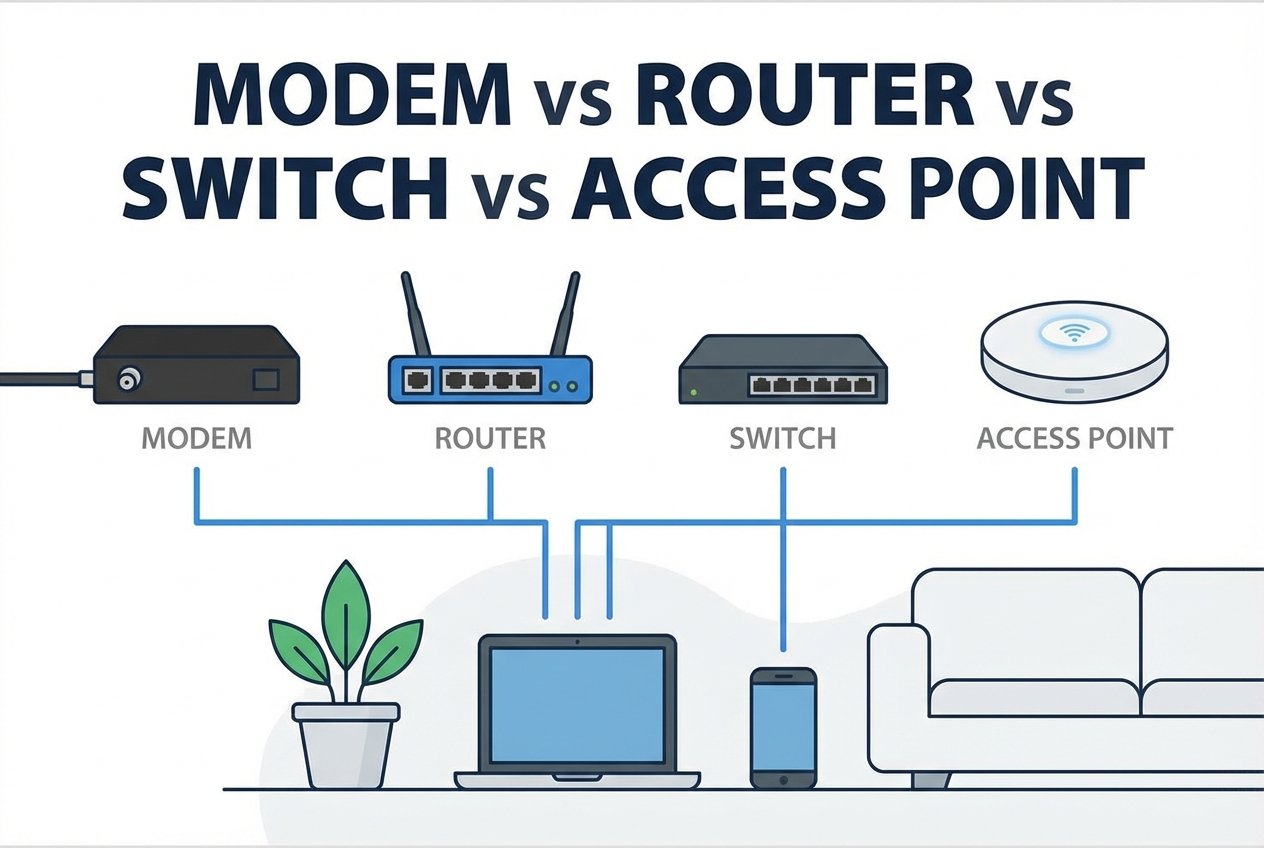
Introduction: network devices explained
Understanding modem vs router vs switch vs access point is one of the fastest ways to level up your networking fundamentals. These devices often sit next to each other in a typical home/SMB topology, but they do very different jobs—especially around the ISP handoff, the WAN, and your LAN. This guide breaks down what each device does, how they work together, and how to choose the right setup for your home or small office.
What is a modem?
A modem (modulator-demodulator) terminates the connection from your Internet service provider and presents it in a form your network can use—most commonly Ethernet. Think of it as the device closest to the WAN side of your network. Depending on the service type, the ISP may provide a cable/DSL modem or a fiber ONT (optical network terminal). In many homes, the modem (or ISP gateway) is the first step after the ISP handoff.
How a modem connects to an ISP (WAN link
- DSL: runs over telephone copper and uses a DSL modem.
- Cable: uses DOCSIS to convert coax signals to Ethernet.
- Fiber: the ISP typically installs an ONT that outputs Ethernet.
After authentication/provisioning, the modem/ONT typically enables your router (or gateway) to obtain a public IP address for Internet access.
Modem troubleshooting basics
- Check for ISP outages or account/provisioning issues.
- Power-cycle: unplug for ~30 seconds, then reconnect.
- Verify status/link lights (power, upstream/downstream, Ethernet).
- Test a direct connection (if supported): connect a laptop and confirm it receives an IP and can reach the Internet.
If issues persist, capture timestamps and any logs/status pages and contact the ISP. Avoid factory resets unless directed by support.
What is a router?
A router connects different IP networks and forwards traffic between them—most commonly your home LAN and the Internet WAN. In a typical home setup, the router is the gateway for all local devices.
Router services: NAT, DHCP, firewall, and routing
- NAT (network address translation): lets many private LAN devices share one public IP on the WAN.
- DHCP: automatically assigns IP addressing and subnetting basics (IP, subnet mask, gateway, DNS) to clients.
- Firewall: blocks unsolicited inbound traffic and enforces access rules.
- Routing: sends packets to the correct next hop; advanced routers add VLAN routing and policy routing.
If you’re learning DNS and DHCP explained, start here: most consumer routers run both services by default.
All-in-one gateway devices vs standalone routers
Many consumer products combine modem + router + switch + Wi‑Fi access point into a single gateway. All-in-one units are convenient, but separating devices can make upgrades easier (for example, keeping a good router while swapping the ISP modem) and can improve performance and coverage when you add a switch or dedicated access points.
What is a switch?
A switch expands wired connectivity on your LAN. It forwards Ethernet frames based on MAC addresses (primarily Layer 2), which is why the conversation router vs switch often comes down to “IP routing” versus “LAN port expansion.” Switches do not perform NAT.
Managed vs unmanaged switches
Unmanaged switches are plug-and-play: great for adding ports at home. Managed switches support features like VLANs, QoS, port mirroring, and monitoring (often SNMP). In a small office, managed switching is a common next step when you need segmentation (guest Wi‑Fi vs staff, VoIP, cameras) or more control over traffic flows.
What is an access point?
An access point (AP) provides Wi‑Fi by bridging wireless clients onto your wired LAN. APs typically do not do NAT, and they usually don’t act as your gateway; they rely on the router for IP addressing, DHCP, and Internet routing.
Access point vs router explained
Access point vs router explained in one line: the router is the IP gateway (NAT/DHCP/firewall), while the AP extends wireless coverage. Many home routers include a built-in AP, but dedicated APs (often PoE-powered) are better for larger homes and SMB environments where you want consistent SSIDs and smoother roaming.
Key differences: modem vs router vs switch vs access point
If you’re comparing modem vs router vs switch vs access point differences, focus on whether the device serves the WAN edge, routes between networks, expands LAN ports, or provides Wi‑Fi:
- Modem/ONT: terminates the ISP handoff and enables WAN connectivity (often where the public IP is delivered).
- Router (gateway): routes between WAN and LAN and provides NAT, DHCP, firewalling, and often DNS forwarding.
- Switch: connects multiple wired LAN devices; managed models add VLAN/QoS features.
- Access point: provides Wi‑Fi access to the LAN; relies on the router for IP services.
How these devices fit in a typical home/SMB topology
Most networks follow a simple flow: ISP handoff → WAN edge device → LAN distribution → Wi‑Fi coverage. Here are common patterns.
Example: Simple home setup (modem + router
Topology: ISP → modem/ONT → router (often with built-in Wi‑Fi) → wired and wireless devices.
This is the most common layout: the router acts as the gateway, runs NAT and DHCP, and your Wi‑Fi comes from the router’s integrated access point.
Example: Home with a switch and dedicated APs
Topology: ISP → modem/ONT → router → switch → wired devices + one or more access points.
Choose this when you need more Ethernet ports or better wireless coverage. A switch handles wired expansion, and dedicated APs improve Wi‑Fi reach without forcing the router to be placed in the ideal radio location.
Example: Small office topology
Topology: ISP → gateway (separate modem + router, or a security appliance) → managed switch → VLANs → PoE access points, phones, cameras, and servers.
This design supports segmentation and easier troubleshooting. It also sets you up for cleaner routing vs switching boundaries and more predictable performance.
Choosing the right device for your network
- Need Wi‑Fi in more rooms? Add an access point (or a mesh system in AP mode) rather than relying on a single router location.
- Out of Ethernet ports? Add an unmanaged switch; choose managed if you need VLANs or traffic prioritization.
- Want a simpler install? An all-in-one gateway reduces boxes and cabling, but may limit flexibility later.
- Need advanced controls? Pick a stronger router/security gateway for VPNs, firewall policy, and NAT and port forwarding.
Basic configuration & troubleshooting tips
For stable home networking and computer networking basics, start with these checks:
- Confirm IP settings: verify clients receive correct IP, subnet, gateway, and DNS (see IP addressing and subnetting basics).
- Check DHCP scope: avoid running two DHCP servers (common when adding a second router by accident).
- Validate WAN status: confirm the router’s WAN has a public IP (or expected ISP private IP) and working DNS.
- Port forwarding: document rules for games, cameras, or servers; understand how TCP vs UDP ports and protocols affect behavior.
- Wi‑Fi health: place APs centrally, prefer 5 GHz/6 GHz where possible, and keep firmware updated.
FAQs
What does a router do vs switch?
A router moves traffic between networks (LAN ↔ WAN) and provides gateway functions like NAT and DHCP. A switch connects devices within the same LAN and expands wired ports.
Can I use an access point without a router?
An access point can broadcast Wi‑Fi, but you still need a router (or another gateway) somewhere to provide IP addressing, routing, and Internet access.
Do I need a modem if I have fiber?
With fiber, the ISP often provides an ONT instead of a traditional modem. Functionally, it still serves the “modem role” by terminating the ISP link and handing off Ethernet.
Conclusion
Once you understand modem vs router vs switch vs access point, designing a reliable network is mostly about putting each device in the right place: modem/ONT at the ISP handoff, a router as the gateway doing NAT/DHCP, a switch for wired LAN expansion, and access points for Wi‑Fi coverage. Use this network hardware comparison to choose the simplest setup that meets your coverage, port, and control needs.