console.time() & console.timeEnd() in JavaScript
Learn console.time javascript: examples, async timing, labels, troubleshooting, performance.now comparison, and best practices.
Drake Nguyen
Founder · System Architect
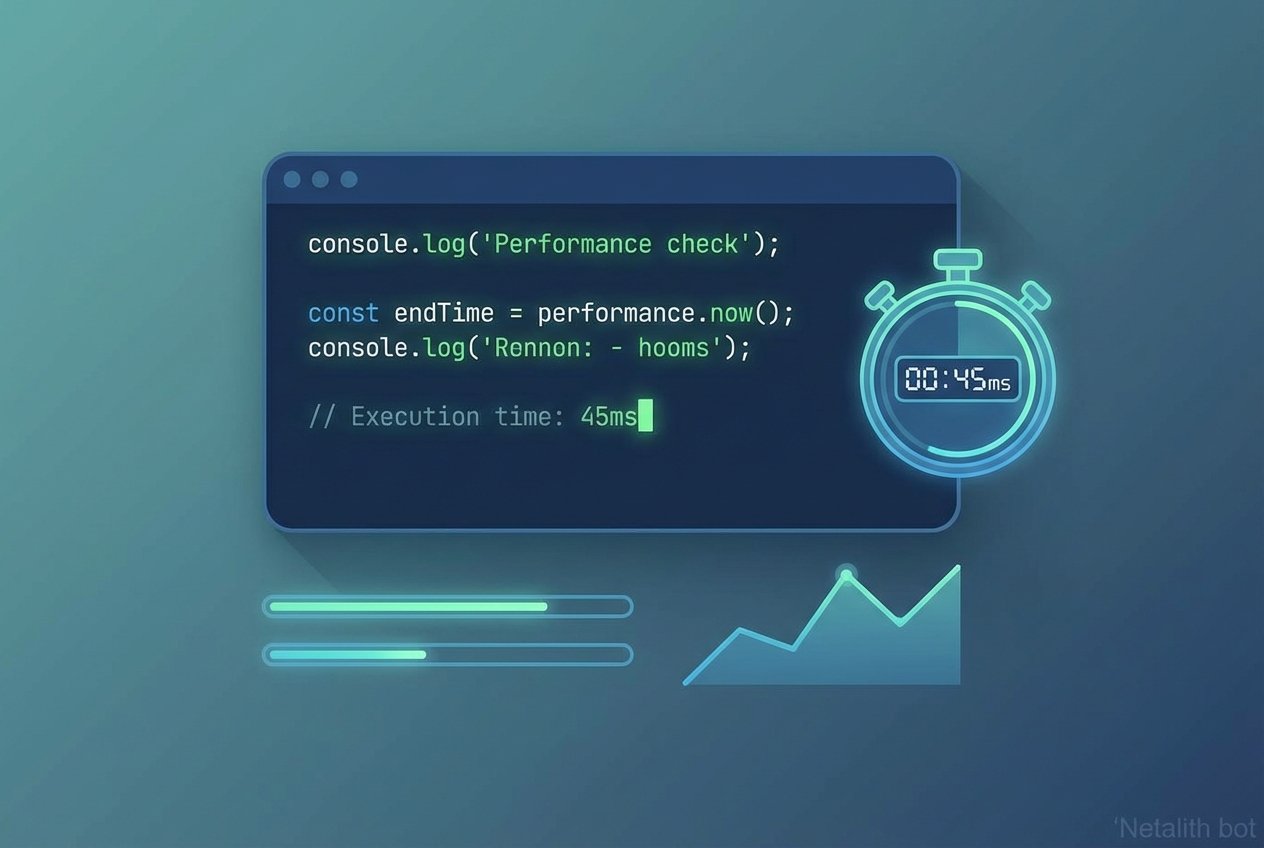
Use console.time in JavaScript to measure execution time
The console API includes console.time and console.timeEnd, two simple JavaScript console methods for quick performance checks. By wrapping a code block between a console.time(label) call and a matching console.timeEnd(label), the browser console timing output shows how long that section took to run. This is useful for JavaScript benchmarking and basic debugging performance tasks in the developer tools console.
Basic example
// measure a synchronous loop
console.time("loopTimer");
for (let i = 0; i < 10000; i++) {
  // work to measure
}
console.timeEnd("loopTimer");
How to use console.time and console.timeEnd in JavaScript
Call console.time with a string label, run the code you want to test, then call console.timeEnd with the exact same label. The label must match console.time or the timer won't stop and you'll get a warning about a missing timer. For measuring small, fast operations, repeat the operation many times (for example inside a loop) to produce meaningful results.
Measuring asynchronous code
async function fetchAndMeasure() {
  console.time("fetchTimer");
  await fetch('/api/data');
  console.timeEnd("fetchTimer");
}
Console.timeEnd returns undefined — explanation
console.timeEnd prints the elapsed time to the console (for example "fetchTimer: 12.34ms") but most implementations return undefined. That behavior is expected in Chrome DevTools and Node.js: the result appears in your console log rather than being returned by the function.
Console.time vs performance.now — which to use?
- console.time / console.timeEnd: Quick, readable browser console timing useful for ad-hoc profiling and developer feedback.
- performance.now(): Gives a numeric, high-resolution timestamp (sub-millisecond) and is better when you need a value to compute or store programmatically.
Multiple timers and labels
You can run multiple timers concurrently by using unique labels for each call (for example "taskA" and "taskB"). If you reuse the same label without calling timeEnd first, the console behavior depends on the environment — some consoles will overwrite or warn, so prefer unique labels when running nested or parallel measurements.
Common issues and troubleshooting
- console.time not showing output in Chrome: ensure the label passed to console.timeEnd exactly matches the label used with console.time, and check your console's filter settings (Errors/Warnings/Logs) so timing messages aren't hidden.
- console.timeEnd not working: verify the timer label, confirm the code path reaches console.timeEnd, and check that your build tools haven't stripped console calls in production builds.
- Node.js usage: console.time and console.timeEnd work in Node.js too; output goes to stdout and the functions still return undefined, but they remain handy for quick server-side timing.
Best practices
- Use console.time javascript calls only in development or debugging builds; remove or disable them in production to avoid cluttering logs.
- For repeatable benchmarks or automated tests, use performance.now or a benchmarking library rather than console timing alone.
- Combine console timing with the Chrome DevTools performance profiler when you need deeper performance profiling beyond simple timers.
Tip: choose clear, unique labels (for example "dbQuery:userFetch") so console.timeEnd label must match console.time and your output is easy to read.