How to Use Browser DevTools to Debug HTML and CSS Like a Pro
Master browser DevTools to debug HTML and CSS. Learn to inspect elements, edit styles in real-time, and use the box model visualizer for better front-end development.

Long Nguyen
Fullstack Developer · AI Engineer · Researcher
Introduction to Browser DevTools
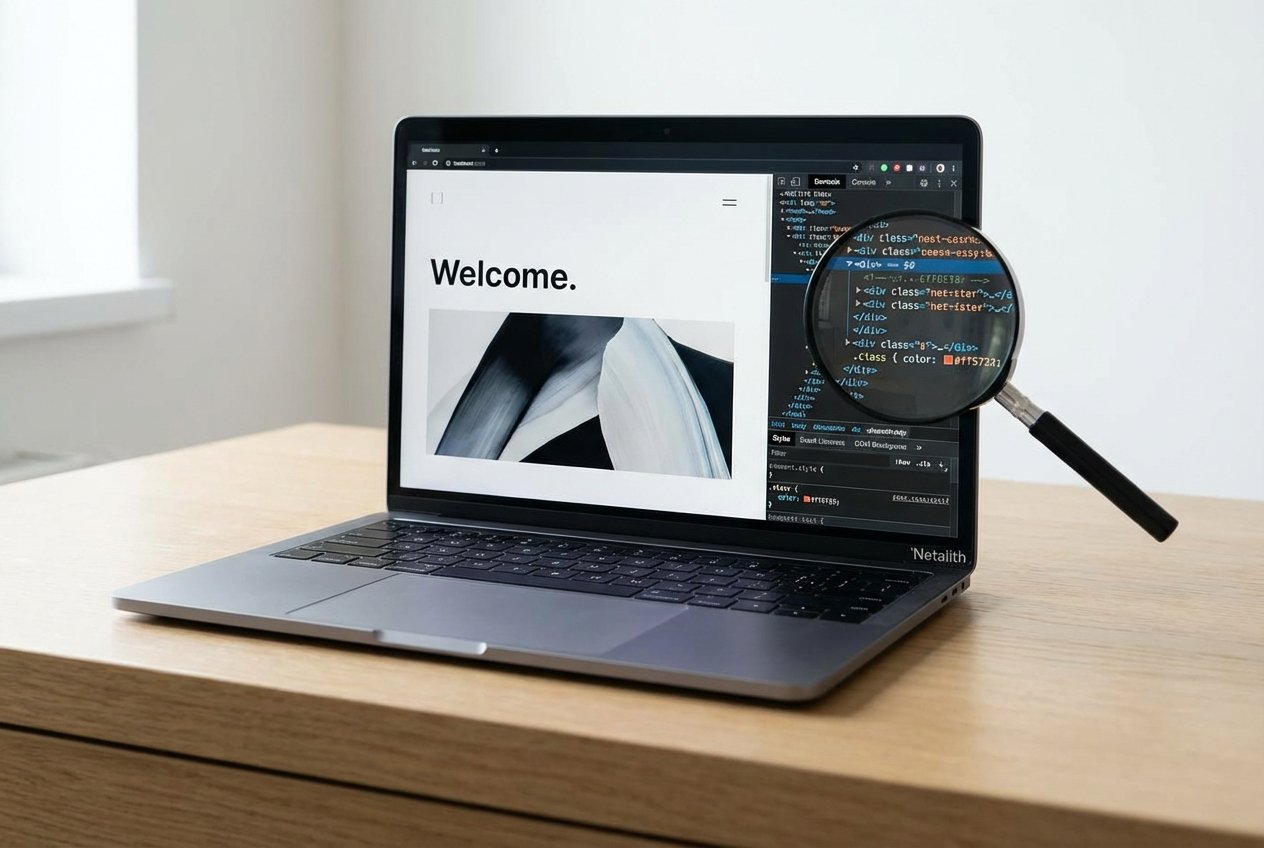
If you are building or maintaining websites, encountering layout breaks or styling glitches is inevitable. Navigating these challenges requires more than just guesswork; it requires the right front-end debugging tools. Among the most powerful assets at your disposal are browser DevTools. Built directly into modern web browsers, these web developer tools provide a transparent window into the underlying code of any web page, making front-end debugging more efficient than ever.
Any comprehensive front-end development guide will emphasize that learning how to leverage these tools is a fundamental skill. From real-time code manipulation to deep DOM inspection, browser DevTools allow you to diagnose and fix issues without constantly modifying your source files and refreshing the page. In this article, we will explore how you can transform your workflow and resolve front-end headaches with precision using this essential browser inspector guide.
Why Use Browser DevTools for Debugging HTML and CSS?
Modern browser DevTools eliminate the frustrating trial-and-error cycle of traditional web development. Instead of saving a file, reloading the browser, and hoping your changes look correct, you can experiment with adjustments instantly. Whether you are adjusting padding, hiding broken elements, or testing entirely new color schemes, these tools serve as a safe sandbox for debugging HTML CSS.
Furthermore, they help you understand how the browser interprets your code. Sometimes the HTML you write is not exactly what the browser renders, especially when JavaScript dynamically alters the page. By viewing the live Document Object Model (DOM), you gain an accurate picture of what is actually happening on the screen, which is core to web standards and modern development.
Getting Started: Browser DevTools Tutorial and Navigation
Starting your journey with this DevTools tutorial requires knowing how to access the interface. Fortunately, accessing these features is uniform across most major browsers, including Google Chrome, Mozilla Firefox, and Microsoft Edge.
- Keyboard Shortcuts: Press
F12orCtrl + Shift + I(Windows/Linux) orCmd + Opt + I(Mac). - Context Menu: Right-click anywhere on a web page and select "Inspect" or "Inspect Element".
Once open, you will find several panels, but the "Elements" (or "Inspector") panel is your primary focus. This interface acts as an invaluable inspect element guide, showing the hierarchical structure of the page on one side and the styling rules on the other. Using the inspect element tool to select specific parts of the page is the perfect way to reinforce your understanding of HTML5 basics, as you can see exactly which code block corresponds to a visual component.
Inspecting and Troubleshooting HTML Structure
Understanding the architecture of a web page is critical. A proper troubleshooting HTML structure with Chrome DevTools tutorial will show you that the Elements panel represents the live DOM. This means if a script adds a class or an element, it reflects here immediately.
Effective debugging HTML CSS starts with thorough DOM inspection. When a layout breaks, hover over your HTML tags in the DevTools panel. The browser will highlight the corresponding element on the page, revealing its physical boundaries. This makes it incredibly easy to verify if you have closed your tags properly or if your semantic HTML is structured correctly. If a container is collapsing or an element is hidden, the HTML inspector helps you locate the structural flaw in seconds.
Pro Tip: You can double-click any HTML attribute, class, or text content within the Elements panel to edit it on the fly. You can even click and drag DOM nodes to rearrange the page layout instantly.
How to Inspect Elements and Edit CSS in Real-Time
When you select an element in the HTML pane, the accompanying style editor displays every CSS rule currently applied to that element. This includes external stylesheets, inline styles, and default browser styles. If you are looking for how to inspect elements and edit CSS in real-time, this panel is the answer.
For modern front-end debugging, the style editor is indispensable. You can toggle specific rules on and off using the checkboxes next to them. If you want to test out your CSS3 fundamentals, simply click inside an existing rule block and type a new property, like background-color: blue;. The page will update instantly.
This real-time editing capability allows you to test fixes before committing them to your actual codebase, dramatically speeding up the design and troubleshooting phase.
Mastering the CSS Box Model Visualizer
Many layout issues stem from a misunderstanding of how elements take up space. This is where the box model visualizer becomes a developer's best friend. Located at the bottom or side of the style editor pane, this visual tool breaks down the CSS box model into four distinct layers: content, padding, border, and margin.
Fixing CSS Layouts with Precision
When dealing with complex CSS layouts, elements might overlap or push each other out of alignment due to conflicting margins or excessive padding. By clicking on an element and referencing the box model visualizer, you can see the exact pixel values applied to each side of your element.
- Content: The innermost rectangle where your text or inner elements live.
- Padding: The space between the content and the border.
- Border: The line that surrounds the padding and content.
- Margin: The invisible space outside the border that pushes other elements away.
Double-clicking the numbers inside the box model visualizer allows you to tweak these values instantly, resolving spacing anomalies without any guesswork.
Testing with the Responsive Mode Emulator
With the diverse range of devices available, ensuring your site looks great on screens of all sizes is mandatory for responsive web design. Fortunately, you do not need a desk full of phones and tablets to test your work. Browser DevTools feature a powerful responsive mode emulator (often called "Device Mode").
Clicking the small device icon (usually near the top left of the DevTools pane) switches your viewport into a mobile or tablet layout. This emulator allows you to:
- Test custom media queries and ensure web standards are maintained across breakpoints.
- Simulate touch events and mobile scrolling behavior.
- Throttle network speeds to see how your site loads on slower connections, introducing you to performance profiling basics.
Using the responsive mode emulator ensures that your HTML structure and CSS rules adapt gracefully, guaranteeing an optimal user experience regardless of the device.
Conclusion
Mastering browser DevTools is a transformative step for any aspiring or professional developer. By integrating these front-end debugging tools into your daily workflow, you move away from guesswork and toward precision. Whether you are using a DevTools tutorial to learn the basics or diving deep into the box model visualizer to fix complex CSS layouts, these tools empower you to build better websites faster.
For those using browser DevTools to debug HTML and CSS for beginners, start by simply inspecting the sites you visit daily. Observe how they are built, experiment with their styles in the style editor, and use console logging basics to track your progress. Over time, these habits will solidify your front-end development guide knowledge and turn you into a debugging pro.
Frequently Asked Questions
What are browser DevTools?
Browser DevTools are a built-in suite of web developer tools found in modern web browsers. They allow developers to inspect page code, test CSS styles, debug JavaScript, and analyze site performance in real-time.
How do I open the inspect element tool in Chrome or Firefox?
You can quickly open the inspect element tool by right-clicking on any part of a web page and selecting "Inspect" or "Inspect Element." Alternatively, use the keyboard shortcut Ctrl + Shift + I (Windows) or Cmd + Opt + I (Mac). In summary, a strong browser DevTools strategy should stay useful long after publication.