Pandas read_excel() - Reading Excel File in Python
Practical guide to using pandas read_excel to import Excel into pandas DataFrame with examples for sheet selection, usecols, headers, skiprows/nrows, parse_dates, openpyxl engine, and exporting.

Long Nguyen
Fullstack Developer · AI Engineer · Researcher
Introduction to pandas read_excel
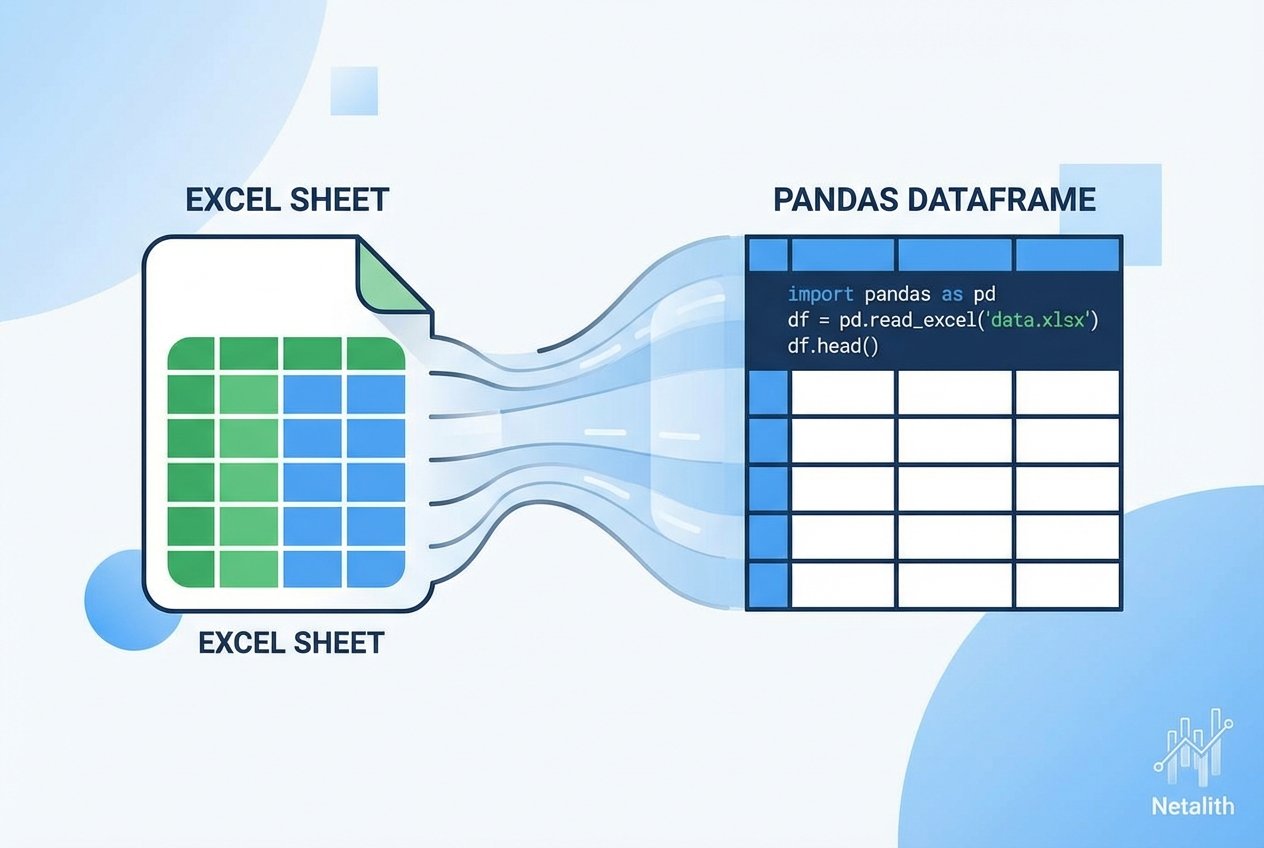
The pandas read_excel function is the standard way to import Excel spreadsheets into a pandas DataFrame when you need to work with tabular data in Python. An Excel worksheet maps naturally to a DataFrame: both are two-dimensional, labeled tables that make filtering, aggregation, and export simple.
Basic pandas read_excel example
Use pandas.read_excel to load a sheet from an .xlsx file into a DataFrame. The sheet_name parameter accepts a sheet name, index, or special values (see later examples).
import pandas as pd

# read a specific sheet by name into a DataFrame
df = pd.read_excel('records.xlsx', sheet_name='Employees')
print(df)
Choose a sheet: sheet_name parameter
The sheet_name parameter controls which Excel sheet is read:
- sheet_name='Sheet1' — read a sheet by name.
- sheet_name=0 — read the first sheet by index.
- sheet_name=None — read all sheets; returns a dict mapping sheet names to DataFrames.
Read multiple sheets into a dict of DataFrames
# read every sheet into a dict: {'Employees': DataFrame, 'Cars': DataFrame, ...}
all_sheets = pd.read_excel('records.xlsx', sheet_name=None)
# access one sheet by name
employees_df = all_sheets['Employees']
List column headers and access column data
After loading a sheet, you can inspect headers and extract column values:
# list column names
print(df.columns.tolist())

# get a column as a Python list
names = df['EmpName'].tolist()
print(names)
Read only selected columns: usecols
The usecols parameter lets you import a subset of columns by name or index. This is useful when you need only specific fields from a large Excel sheet.
# by column names
cars = pd.read_excel('records.xlsx', sheet_name='Cars', usecols=['Car Name', 'Car Price'])

# by column indices (0-based)
cars_subset = pd.read_excel('records.xlsx', sheet_name='Cars', usecols=[0, 2])
Reading files without a header row
If the worksheet has no header row, set header=None. You can also specify an integer to select which row becomes the header (0-based index).
# no header row — pandas will assign integer column names 0,1,2,...
no_header = pd.read_excel('records.xlsx', sheet_name='Numbers', header=None)

# use the 3rd row (index 2) as the header
custom_header = pd.read_excel('records.xlsx', sheet_name='SheetA', header=2)
Skip rows and limit rows: skiprows and nrows
Use skiprows to ignore initial lines and nrows to read only a fixed number of rows.
# skip the first 2 rows and then read 10 rows
partial = pd.read_excel('records.xlsx', sheet_name='Data', skiprows=2, nrows=10)
Parsing dates from Excel
To parse date columns into datetime objects, use parse_dates. This converts strings or Excel date serials into pandas.Timestamp values for easier time-series work.
# parse one or more columns as dates
df_dates = pd.read_excel('records.xlsx', sheet_name='Sales', parse_dates=['InvoiceDate'])
Engine selection: openpyxl for .xlsx files
For modern .xlsx files, specify engine='openpyxl' when necessary. The xlrd engine no longer supports .xlsx by default, so install openpyxl if you encounter engine errors.
# explicitly set the engine (install openpyxl via pip if needed)
df = pd.read_excel('records.xlsx', sheet_name='Employees', engine='openpyxl')
Convert a DataFrame to dict, JSON, or CSV
Once the data is in a DataFrame, pandas provides simple exporters to convert it to other formats for APIs or storage.
# convert to list-of-records dicts
records = cars.to_dict(orient='records')

# convert to JSON string
json_str = cars.to_json(orient='records')

# convert to CSV text (or save to a file)
csv_text = cars.to_csv(index=False)
Common tips and small gotchas
- For large files, read only required columns with usecols to save memory.
- If column names contain leading/trailing spaces, consider df.columns = df.columns.str.strip().
- When reading multiple sheets, iterate the returned dict to process each DataFrame consistently.
- If parse_dates does not infer the correct format, post-process with pd.to_datetime(..., dayfirst=True) or provide format explicitly.
Reference: consult the official pandas.read_excel documentation for the full list of parameters and the most up-to-date guidance on engines and supported file types.