Extract Text From PDF Resumes in Python with pdfplumber
Extract clean text from PDF resumes in Python with pdfplumber, and detect scanned image-only PDFs before they silently break your AI interview app.

Long Nguyen
Fullstack Developer · AI Engineer · Researcher
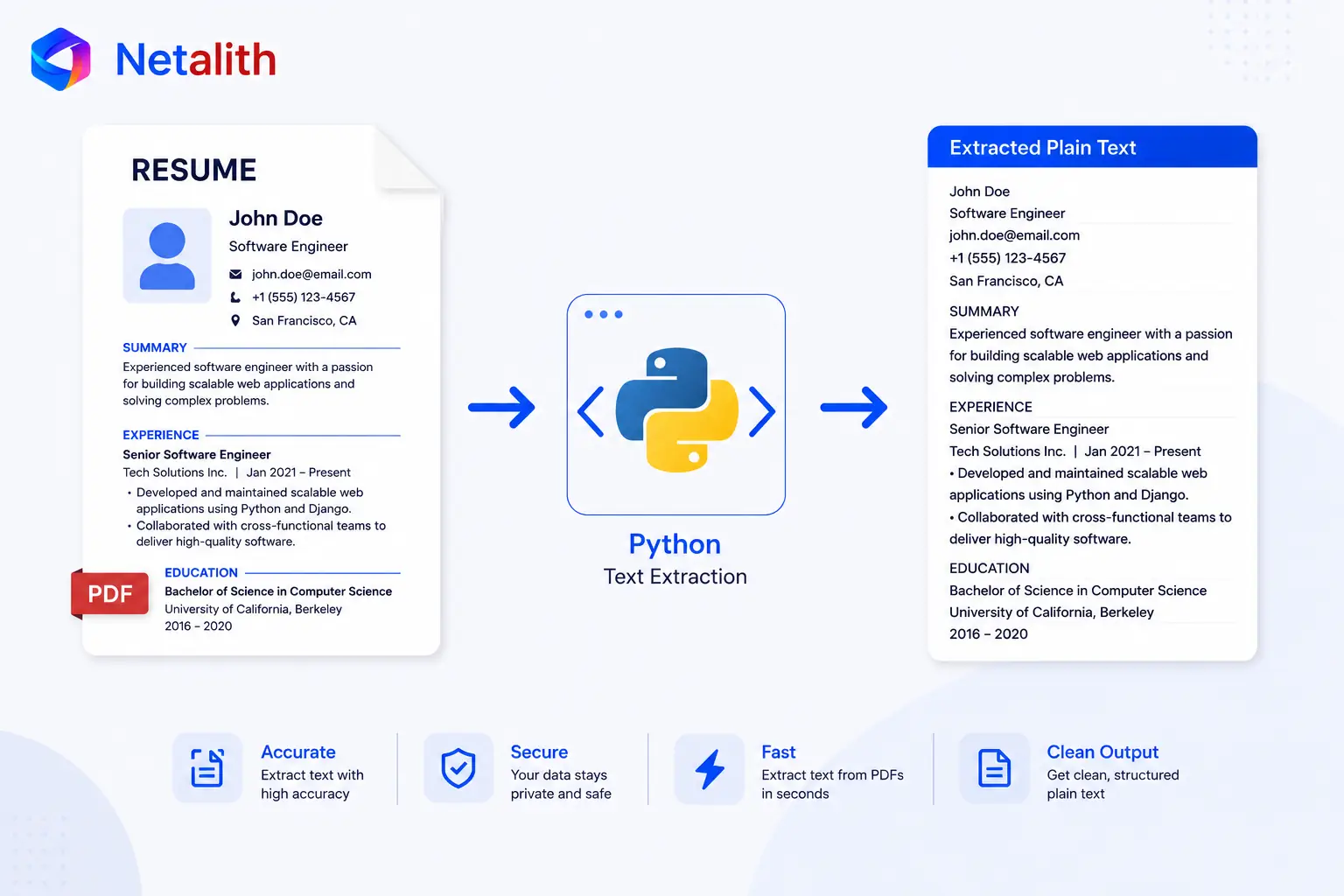
Why PDF Text Extraction Is Harder Than It Looks
To build the interview, the AI first needs the candidate's CV as clean text — so this part is about how to extract text from a PDF resume in Python. In part 2 we gave the app a place to store an interview and its CV. Now we fill that cv_text field.
The catch is that a PDF isn't a text file. It's a layout format that describes where glyphs sit on a page, not a clean stream of sentences. In practice that means extracted text can come out with odd spacing or broken line breaks, and multi-column resumes can read out of order. For most real, text-based resumes, though, a good library handles this well enough to feed straight to an AI.
Extracting Text With pdfplumber
Among the Python PDF libraries, pdfplumber strikes the best balance for resumes: it preserves layout and spacing far better than the bare-bones extractors, without the heavy setup of a full OCR stack. Install it first:
pip install pdfplumberThe extraction itself is short. Open the file, iterate its pages, and join the text into a single string:
import pdfplumber


def extract_text_from_pdf(file_path):
    with pdfplumber.open(file_path) as pdf:
        return "\n".join(page.extract_text() or "" for page in pdf.pages)
The or "" is the one detail that matters here. extract_text() returns None for a page it can't pull text from, and joining None would raise an error. Defaulting to an empty string keeps the function safe across mixed, real-world files — a small guard that saves you from a crash on the one odd page in an otherwise fine resume.
That's the whole happy path: for a normal text-based PDF, this gives you clean, AI-ready text in a few lines. No premature abstraction, no cleanup pipeline you don't need yet — just the direct solution to the actual problem. Getting the raw text out is the job here; making sure that text is actually a resume is a separate concern we handle later at the AI layer. If you'd rather skip the full build and start from the finished, production-ready source, the complete code is available as a starter kit — otherwise, part 4 is next, where we handle DOCX resumes, which hide much of their content inside tables.
FAQ
Frequently asked questions
Why pdfplumber instead of PyPDF2 or pypdf?
pdfplumber preserves layout and spacing better, which matters for resumes where structure carries meaning. Simpler libraries often return jumbled text that's harder to feed to an AI cleanly.
How do I detect a scanned PDF?
Try extracting text and measure how much you get. A real text PDF returns plenty of characters; a scanned, image-only one returns little or none. A per-page character threshold is a simple, effective check.
Should my app OCR scanned resumes automatically?
You can, but OCR adds real complexity and failure modes. For a first version, detecting the scanned file and asking for a text-based resume is cleaner. The production build handles this more fully.