Google Sheets to Shopify Product Sync Without Losing Variants
Google Sheets to Shopify product sync done right: CSV vs apps vs Apps Script with productSet, the 2026 token change, real limits, and a working script.

Long Nguyen
Développeur fullstack · Ingénieur IA · Chercheur
The short answer
A Google Sheets to Shopify product sync can be built four ways: a manual CSV import, a sync app, a Google Apps Script that calls Shopify's Admin API, or an external service. If the spreadsheet is where you maintain the catalog and you want Shopify to follow it on a schedule, the Apps Script route with the productSet mutation is the one designed for the job. Shopify built that mutation for mirroring product data from an external source, and its documentation lists a spreadsheet as one of those sources.
The catch is that productSet treats what you send as the complete product. Leave a variant out of the sheet and Shopify deletes that variant. Most of this guide is about making that behaviour work for you instead of against you.
Four ways to sync Google Sheets to Shopify, compared
| Method | How it runs | Good for | Where it breaks |
|---|---|---|---|
| CSV import | By hand: download the sheet as CSV, upload it under Products > Import | A first load, or an occasional bulk edit | No schedule, 15 MB file cap, an import can't be cancelled once it starts |
| Sync app or automation platform | An installed app watches the sheet and pushes changes | Teams with no developer who need it running today | A recurring fee that usually grows with catalog size, and you only get the field mapping the app exposes |
Apps Script + productSet |
A script attached to the sheet, started by a time-driven trigger | One store, the sheet is the master, hundreds to a few thousand products | 6-minute run cap, a daily trigger quota, and the code is yours to maintain |
| External service + bulk operations | A small app on your own server reads the sheet and writes to Shopify | Large catalogs, several stores or channels, two-way sync | Needs hosting and a developer |
The rest of this article walks through the first and third rows in detail, because that is where most stores start, and then shows the point where the fourth row becomes the cheaper option.
Why a CSV import is not a product sync
Shopify's own guidance for bulk edits is to export products, change the file in a spreadsheet program such as Google Sheets, and import it back. That works, and for a one-off load it is the right tool. It stops being enough when you need the same update to run every day, because of how the importer behaves:
- It only updates when you tick a box. Without Overwrite products with matching handles, rows whose handle already exists in the store are skipped.
- A blank cell is an instruction. If a non-required column is in the file but the cell is empty, the existing value is overwritten with blank. If the column is absent from the file, the value is left alone. An emptied Vendor cell wipes the vendor.
- Editing an option value replaces the variant. Changing Option1, Option2 or Option3 values deletes the existing variant ID and creates a new one, which breaks anything that stored the old ID.
- It cannot remove products, cannot be cancelled once started, and keeps no import history.
- The file cannot exceed 15 MB.
A sync, in the sense people mean when they search for one, is repeatable without a person, safe to run twice, and tells you which rows failed. The CSV importer gives you none of the three. Use it to seed the store, then move to the API.
How the productSet mutation syncs a sheet to Shopify
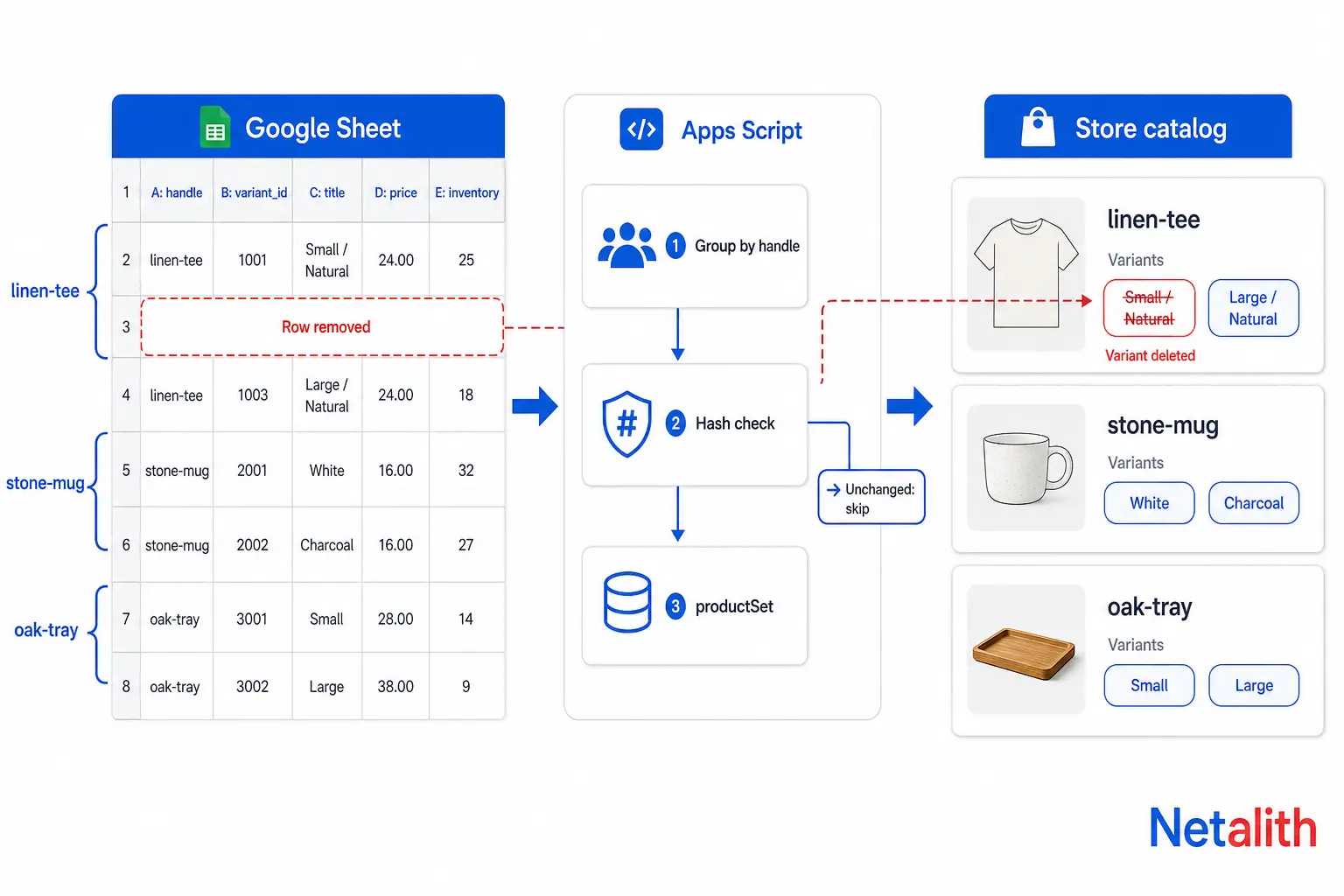
productSet is a mutation in Shopify's GraphQL Admin API. Instead of saying change this price, you send the whole product as it should exist, and Shopify creates, updates or removes whatever is needed to match. Shopify's guide to syncing product data with productSet describes it as the mutation for cases where Shopify is the downstream copy of an outside system. Two rules decide everything:
- Ordinary fields you leave out are untouched; fields you include are overwritten, even with an empty value. Omit
tagsand the tags stay. Sendtags: []and they are cleared. - Options and variants are a full replacement. The list you send is the list that exists afterwards. Shopify's example is blunt: a product with 5 variants that receives 3 ends up with 3, and the other 2 are deleted.
Rule 2 is the whole reason to structure the sheet carefully. It is also what makes the mutation safe to repeat: sending the same rows twice produces the same product, not a duplicate.
The sheet does not need Shopify IDs
The mutation takes an identifier argument with three choices: id updates an existing product, while handle and customId are upserts, meaning update the product if it exists and create it if it does not. Matching on handle lets the same script handle new and existing products with no ID column.
The practical consequence is that the handle becomes your join key. If someone edits a handle in the sheet, or changes the URL handle in the Shopify admin, the next run finds no match and creates a second product. Lock that column. If handles genuinely need to change over time, match on a custom ID instead.
Synchronous or asynchronous
By default the call is synchronous and returns the finished product. With synchronous: false it returns an operation ID, and you poll the productOperation query until the status is COMPLETE or FAILED. Shopify recommends the asynchronous mode when a large product times out. For typical products the synchronous call keeps the script shorter. Either way the app needs the write_products access scope, and a product can hold 2,048 variants by default.
Structure the sheet so one row is one variant
Use one tab named Products, with one row per variant and the handle repeated on every row of the same product.
| handle | title | status | option_name | option_value | sku | price |
|---|---|---|---|---|---|---|
| linen-tee | Linen Tee | active | Size | S | TEE-S | 29 |
| linen-tee | Linen Tee | active | Size | M | TEE-M | 29 |
| stone-mug | Stone Mug | draft | MUG-1 | 14.5 |
Add four more columns: vendor, compare_at_price, sync_status and synced_hash. The last two belong to the script. Then hold to these rules:
- Every variant of a product lives in this tab. A row you delete is a variant Shopify deletes on the next run. Splitting one product across tabs has the same effect.
- Product-level fields are read from the first row of each handle. Keep title, vendor and status identical down the group.
- Products with no options leave both option columns blank. The script sends them as a single variant named Default Title, which is how Shopify represents a product without options.
- Removing a product from the sheet does not remove it from the store. The script only sends handles it can see. Set
statusto archived to retire a product.
The example script handles one option per product to stay readable. A second option, such as Colour next to Size, means a second pair of option columns and a second entry in both option arrays.
Get an Admin API token in 2026: the Dev Dashboard change
Most tutorials for this still tell you to open Settings > Apps and sales channels > Develop apps and copy an Admin API access token. That path created what Shopify now calls a legacy custom app, and since new ones can no longer be created. Legacy apps made before that date keep working. For a new sync, the setup is:
- Create an app in the Shopify Dev Dashboard.
- On the app version, select the
write_productsscope. - Install the app on your store.
- Copy the Client ID and Client secret from the app's Settings page.
- In the Apps Script editor, open Project Settings and add three script properties:
SHOPIFY_SHOP(the part before .myshopify.com),SHOPIFY_CLIENT_IDandSHOPIFY_CLIENT_SECRET.
There is no token to copy any more. The script exchanges the client ID and secret for one by posting grant_type=client_credentials to /admin/oauth/access_token on your store's myshopify.com domain. The token expires after 24 hours, so the script below requests a new one at the start of every run instead of storing it.
Two things to check before you build on this:
- The app and the store must be in the same Shopify organization. Otherwise the token request fails with
shop_not_permitted. If a freelancer or agency builds the sync, either the app is created inside your organization or they use a different authorization flow. - Edit access to the spreadsheet is access to the script. Anyone who can edit the sheet can open the attached Apps Script project. Keep the editor list short, and never put the secret in a cell.
A Google Apps Script that syncs products to Shopify
In the sheet, open Extensions > Apps Script, paste the code, and run syncProducts once by hand. When the sync_status column fills in, add a time-driven trigger for the same function.
const API_VERSION = '2026-10';
const SHEET_NAME = 'Products';
const MAX_RUN_MS = 4.5 * 60 * 1000;

const MUTATION = [
  'mutation sync($input: ProductSetInput!, $identifier: ProductSetIdentifiers) {',
  '  productSet(input: $input, identifier: $identifier, synchronous: true) {',
  '    product { id handle }',
  '    userErrors { code field message }',
  '  }',
  '}'
].join(' ');

function syncProducts() {
  const started = Date.now();
  const props = PropertiesService.getScriptProperties();
  const shop = props.getProperty('SHOPIFY_SHOP');
  const token = getToken_(shop, props);

  const sheet = SpreadsheetApp.getActive().getSheetByName(SHEET_NAME);
  const rows = sheet.getDataRange().getValues();
  const head = rows.shift().map(String);
  const col = name => head.indexOf(name);

  // 1. Group variant rows by product handle.
  const groups = {};
  rows.forEach((row, i) => {
    const handle = String(row[col('handle')]).trim();
    if (!handle) return;
    (groups[handle] = groups[handle] || []).push({ row: row, line: i + 2 });
  });

  for (const handle of Object.keys(groups)) {
    if (Date.now() - started > MAX_RUN_MS) break; // resume on the next trigger

    const items = groups[handle];
    const input = buildInput_(handle, items, col);

    // 2. Skip products whose rows have not changed since the last good sync.
    const hash = hash_(JSON.stringify(input));
    if (items[0].row[col('synced_hash')] === hash) continue;

    // 3. Send the complete product state, matched by handle.
    const body = callShopify_(shop, token, { input: input, identifier: { handle: handle } });
    const result = body.data && body.data.productSet;
    const errors = result ? result.userErrors : [{ message: JSON.stringify(body.errors) }];
    const ok = errors.length === 0;
    const status = ok
      ? 'OK ' + new Date().toISOString()
      : 'ERROR ' + errors.map(e => e.message).join(' | ');

    // 4. Write the outcome next to every row of that product.
    items.forEach(item => {
      sheet.getRange(item.line, col('sync_status') + 1).setValue(status);
      if (ok) sheet.getRange(item.line, col('synced_hash') + 1).setValue(hash);
    });
  }
}

function buildInput_(handle, items, col) {
  const first = items[0].row;
  const optionName = String(first[col('option_name')]).trim() || 'Title';
  const valueOf = row => String(row[col('option_value')]).trim() || 'Default Title';
  const orNull = value => (value === '' ? null : value);

  return {
    handle: handle,
    title: String(first[col('title')]),
    vendor: String(first[col('vendor')]),
    status: String(first[col('status')]).toUpperCase(),
    productOptions: [{
      name: optionName,
      values: items.map(item => ({ name: valueOf(item.row) }))
    }],
    // Every variant of the product must be listed here.
    // A variant missing from this array is deleted in Shopify.
    variants: items.map(item => ({
      optionValues: [{ optionName: optionName, name: valueOf(item.row) }],
      sku: String(item.row[col('sku')]),
      price: item.row[col('price')],
      compareAtPrice: orNull(item.row[col('compare_at_price')])
    }))
  };
}

function getToken_(shop, props) {
  const url = 'https://' + shop + '.myshopify.com/admin/oauth/access_token';
  const res = UrlFetchApp.fetch(url, {
    method: 'post',
    payload: {
      grant_type: 'client_credentials',
      client_id: props.getProperty('SHOPIFY_CLIENT_ID'),
      client_secret: props.getProperty('SHOPIFY_CLIENT_SECRET')
    }
  });
  return JSON.parse(res.getContentText()).access_token;
}

function callShopify_(shop, token, variables) {
  const url = 'https://' + shop + '.myshopify.com/admin/api/' + API_VERSION + '/graphql.json';
  let body;
  for (let attempt = 0; attempt < 3; attempt++) {
    const res = UrlFetchApp.fetch(url, {
      method: 'post',
      contentType: 'application/json',
      headers: { 'X-Shopify-Access-Token': token },
      payload: JSON.stringify({ query: MUTATION, variables: variables }),
      muteHttpExceptions: true
    });
    body = JSON.parse(res.getContentText());
    if (!body.errors) break;
    Utilities.sleep(1000); // one-second backoff, then retry
  }
  const cost = body.extensions && body.extensions.cost;
  if (cost && cost.throttleStatus.currentlyAvailable < 200) Utilities.sleep(1000);
  return body;
}

function hash_(text) {
  const bytes = Utilities.computeDigest(Utilities.DigestAlgorithm.MD5, text);
  return 'h' + bytes.map(b => ((b + 256) % 256).toString(16).padStart(2, '0')).join('');
}
What it does, in order:
- Groups rows by handle and builds the complete product, so every variant in the sheet is sent together.
- Skips unchanged products. It hashes what it is about to send and compares that with
synced_hash. Only products whose rows changed cost an API call. Clear the cell to force a resend. - Stops at 4.5 minutes. Because finished products are skipped next time, the following trigger picks up where this one stopped. No cursor to store.
- Reports per row. Shopify returns validation problems in
userErrors, and the message lands next to the rows that caused it. - Backs off. It waits one second and retries when Shopify returns an error, and pauses when the remaining rate-limit budget in the response runs low.
Run it against a development store before your live one. Check three cases there: a new product, an edited price, and a deleted variant row. The API version is pinned at the top of the file on purpose. Shopify releases versions quarterly, so move it forward deliberately rather than letting it drift.
The limits that decide whether Apps Script is enough
| Limit | Value | Set by |
|---|---|---|
| Script runtime per execution | 6 minutes | |
| Total trigger runtime per day | 90 minutes (consumer account), 6 hours (Workspace) | |
| URL Fetch calls per day | 20,000 (consumer), 100,000 (Workspace) | |
| GraphQL Admin API rate | 100 points per second (standard plans), 200 (Advanced), 1,000 (Plus) | Shopify |
| Cost of one mutation | 10 points by default | Shopify |
| Variants per product | 2,048 by default | Shopify |
| New variants per day once a store holds 500,000 | 10,000 (does not apply on Plus) | Shopify |
| Client credentials token lifetime | 24 hours | Shopify |
The Google figures come from the Apps Script quotas reference, and they are per user, resetting 24 hours after the first request.
Read the table with a script that makes one call at a time in mind, and Google's limits bite long before Shopify's do. The number that catches people is the daily trigger runtime. An hourly trigger that uses its full 6 minutes consumes 24 x 6 = 144 minutes a day, which is over the 90-minute allowance of a free Google account. It only fits if most runs finish quickly, and that is exactly what the hash check buys you: if a few dozen products changed since the last run, it makes a few dozen calls and ends quickly.
The first full sync is the exception, because every product is new. Expect it to take several runs, and watch sync_status fill in from the top.
When the daily changes themselves no longer fit, the job has outgrown a spreadsheet script and turned into a small custom app. That is the kind of Shopify API integration work Netalith builds: the same productSet logic, running on a server with a queue, logs and alerts.
Should inventory and two-way sync go through the sheet?
Technically, yes. productSet accepts inventoryQuantities on each variant, with a location ID and a quantity. The question is whether the sheet actually knows the number.
The field takes an absolute quantity, not an adjustment. A sheet that someone updated this morning does not know about the orders placed since, so pushing its number can put sold stock back on sale. Decide ownership per field before writing any code:
| Field | Sensible owner | Why |
|---|---|---|
| Title, vendor, status | Sheet | Changes rarely, and only when a person decides |
| Price, compare-at price | Sheet | Pricing is usually planned in a spreadsheet anyway |
| Stock quantity | Shopify, or the system that receives and ships stock | Changes with every order, without anyone touching the sheet |
| Descriptions, images, SEO fields | Shopify | Easier to edit and preview in the admin; leave them out of the input and they are untouched |
Two-way sync is a different project. Once both sides can change the same field you need a rule for which side wins, a way to hear about Shopify-side edits, and protection against the two systems echoing each other's updates forever. If staff only need to see live Shopify values, a separate read-only tab that is refreshed from Shopify gives them that without any of the conflict handling.
When to move the sync out of the spreadsheet
The script above is a reasonable permanent solution for a single store with a modest catalog. These are the signs it has stopped being one:
- Runs keep hitting the time cap even though only changed products are sent.
- A second store, or a marketplace listing, needs to read the same sheet.
- You need changes made in Shopify to flow back.
- A failed sync has to alert someone, not wait in a column until a person looks.
- More people need to edit the sheet than you would trust with store credentials.
The next step up keeps the sheet as the place people work and moves the engine to a server. There the same mutation can run inside Shopify's bulk operations, which are not subject to the cost cap and rate limits that apply to single requests.
If you are not sure which side of that line your catalog sits on, ask Netalith for a free quote and describe the sheet: how many products, how many variants, how often it changes, and who edits it. That is enough to say whether a script will hold or whether a small app is the cheaper choice over a year.
FAQ
Questions fréquentes
Can I sync Google Sheets to Shopify without a paid app?
Yes, in two ways. You can download the sheet as a CSV and import it under Products in the Shopify admin, which is manual every time. Or you can attach a Google Apps Script to the sheet that calls Shopify's GraphQL Admin API on a time-driven trigger. The second route needs an app that you create yourself in the Shopify Dev Dashboard so the script has API credentials.
Will a Google Sheets to Shopify product sync delete my products or variants?
It can delete variants. The productSet mutation treats the variants you send as the complete list, so a variant row removed from the sheet is removed from the product on the next run. Whole products are different: a script only sends the handles it finds in the sheet, so a product you delete from the sheet stays in the store until you archive it.
Do I need Shopify product IDs in my spreadsheet?
No. productSet accepts an identifier, and matching on the product handle is an upsert: Shopify updates the product if that handle exists and creates it if not. The trade-off is that the handle becomes the join key, so changing a handle in the sheet or in the Shopify admin creates a second product instead of renaming the first.
How often can a Google Apps Script sync run?
As often as its quotas allow. Each execution is capped at 6 minutes, and the total runtime of triggered executions is capped at 90 minutes a day on a consumer Google account and 6 hours on Google Workspace. An hourly trigger is realistic only when most runs are short, which is why the script should skip products that have not changed.
Why can't I find the Admin API access token that older tutorials mention?
Those tutorials describe legacy custom apps created inside the Shopify admin. Since January 1, 2026 new legacy custom apps cannot be created. New apps are made in the Dev Dashboard, which shows a client ID and client secret instead of a token. Your script exchanges those for an access token using the client credentials grant, and the token expires after 24 hours.
Should I sync inventory quantities from Google Sheets to Shopify?
Only if the sheet is genuinely the stock master and is updated automatically. productSet takes an absolute quantity per location, so a number typed in this morning overwrites whatever Shopify counted down from orders since then. For most stores it is safer to let the sheet own prices, titles and status, and leave stock to Shopify or to the system that receives and ships it.