Using Google Fonts in Your Web Pages
Practical guide on how to use Google Fonts: link and @import examples, font-family usage, performance tips (preconnect, display swap), multiple fonts, and self-hosting.
Drake Nguyen
Founder · System Architect
Overview
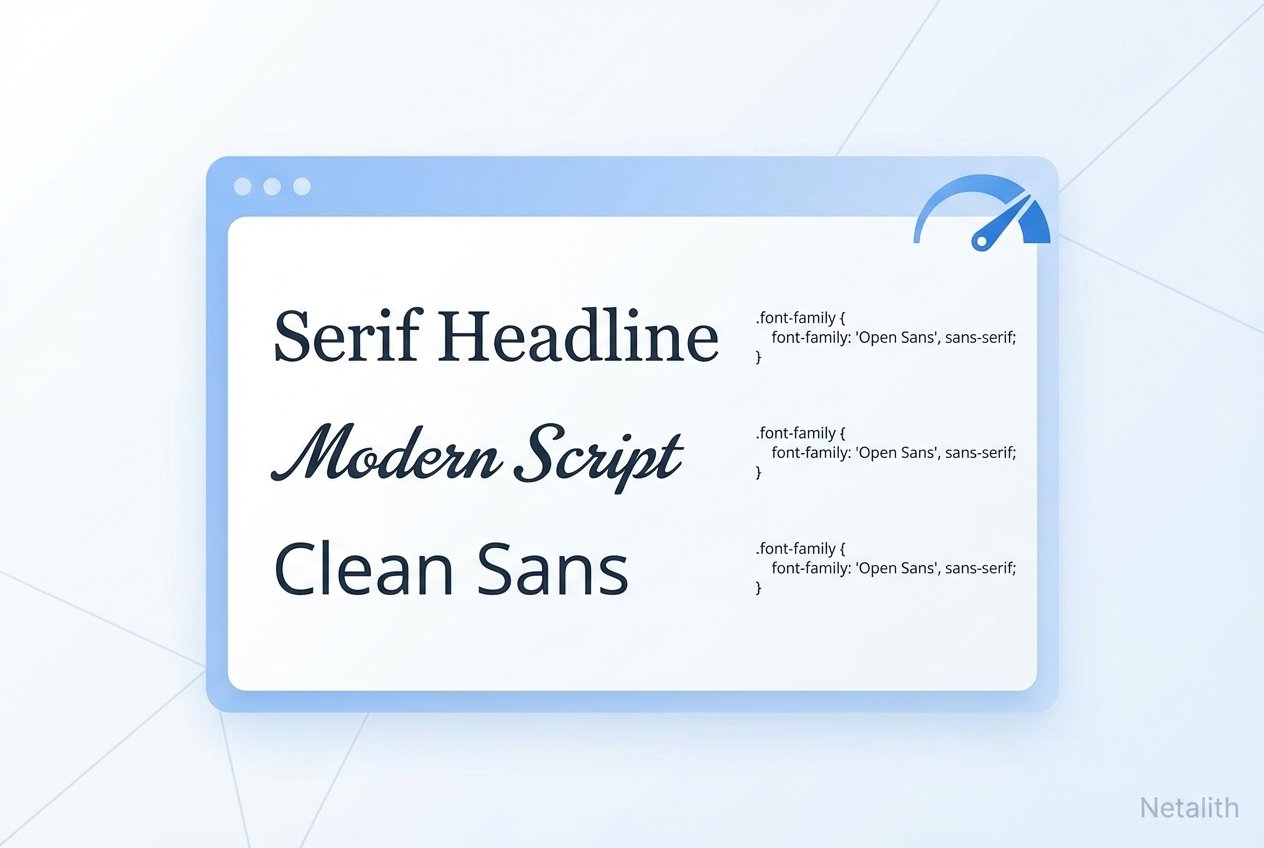
This guide explains how to use Google Fonts to improve web typography. Youll learn how to add Google Fonts to your website, import fonts in CSS, use the Google Fonts CSS font-family values, and follow simple performance best practices like preconnect and font-display swap.
Getting started
To begin, visit the Google Fonts library at fonts.google.com and pick one or more families. Google Fonts provides a hosted API and CDN that serves Open Source fonts free for commercial and non-commercial use.
Adding a Google Font with the HTML link tag
The recommended, fastest method is to include the stylesheet link in your document head. This keeps requests parallel and avoids blocking your main stylesheet.
<link href="https://fonts.googleapis.com/css2?family=Karla:wght@400;700&display=swap" rel="stylesheet">Importing Google Fonts in CSS (@import)
If you manage fonts from inside a separate stylesheet, you can use @import at the top of that CSS file. Note: @import may delay loading compared to the link tag and is not recommended for critical fonts.
@import url('https://fonts.googleapis.com/css2?family=Karla:wght@400;700&display=swap');Using the font-family in CSS
After loading the font, apply it with font-family and sensible fallbacks. Always include a system font fallback to reduce layout shifts if the webfont is delayed.
body {
  font-family: 'Karla', system-ui, -apple-system, 'Segoe UI', Roboto, sans-serif;
}

h1, h2, h3 {
  /* Example of using a specific weight */
  font-family: 'Karla', sans-serif;
  font-weight: 700;
}
Using multiple Google Fonts on one page
To load multiple families in one request, add them to the family parameter. Limiting weights and styles reduces file size.
<link href="https://fonts.googleapis.com/css2?family=Roboto:wght@400;700&family=Playfair+Display:wght@400;700&display=swap" rel="stylesheet">Font-display: swap (why it matters)
The Google Fonts API supports the font-display parameter (example: display=swap). This avoids a long flash of invisible text (FOIT) by using a fallback font immediately, then swapping to the webfont when ready (FOUT).
/* Using the URL parameter in the Google Fonts request */
https://fonts.googleapis.com/css2?family=Karla:wght@400;700&display=swap
Performance tips for Google Fonts
- Preconnect to speed up the handshake with the font servers:
<link rel="preconnect" href="https://fonts.gstatic.com" crossorigin> - Only request the weights and character subsets (latin, cyrillic, etc.) you need to reduce payload.
- Prefer the link tag in head over @import for faster rendering.
- Consider preload for a single critical font face (use carefully):
<link rel="preload" href="https://fonts.gstatic.com/s/karla/v20/xxx.woff2" as="font" type="font/woff2" crossorigin> - Limit the number of font families and weights to lower cumulative size and improve Largest Contentful Paint (LCP).
Google Fonts API and CDN notes
Google Fonts is served via a high-performance CDN. The CSS you include contacts fonts.googleapis.com and font files come from fonts.gstatic.com. Use the crossorigin attribute on preconnect and preload where applicable to avoid CORS issues.
Self-hosting Google Fonts vs Google-hosted
Self-hosting fonts gives you more control over caching, privacy, and availability, but requires packaging the font files, creating @font-face declarations, and serving the files from your own server or CDN. Google-hosted fonts are convenient, automatically updated, and globally cached by Googles CDN.
Common problems and troubleshooting
- Font not applying: confirm the family name in your CSS matches the Google Fonts font-family exactly.
- Slow load or FOIT: use display=swap and preconnect; check network waterfall in DevTools.
- CORS/preload errors: add crossorigin attributes to preconnect/preload links.
- Too many weights: remove unused weights or load only the required subsets.
Quick checklist: how to use Google Fonts on your site
- Pick a font at fonts.google.com.
- Insert the HTML link tag into the <head> or @import at the top of your stylesheet.
- Use the provided Google Fonts font-family in your CSS with fallbacks.
- Optimize by adding preconnect, limiting weights/subsets, and using display=swap.
Further reading
Explore Google Fonts documentation and articles about webfont optimization, FOIT vs FOUT, and advanced font loading strategies to get the best performance and user experience.