Kali Linux Installation Guide: Step-by-Step VirtualBox Setup
A complete step-by-step guide to installing Kali Linux 2026 on VirtualBox. Includes system requirements, ISO download tips, and guest additions setup.

Long Nguyen
Fullstack Developer · AI Engineer · Researcher
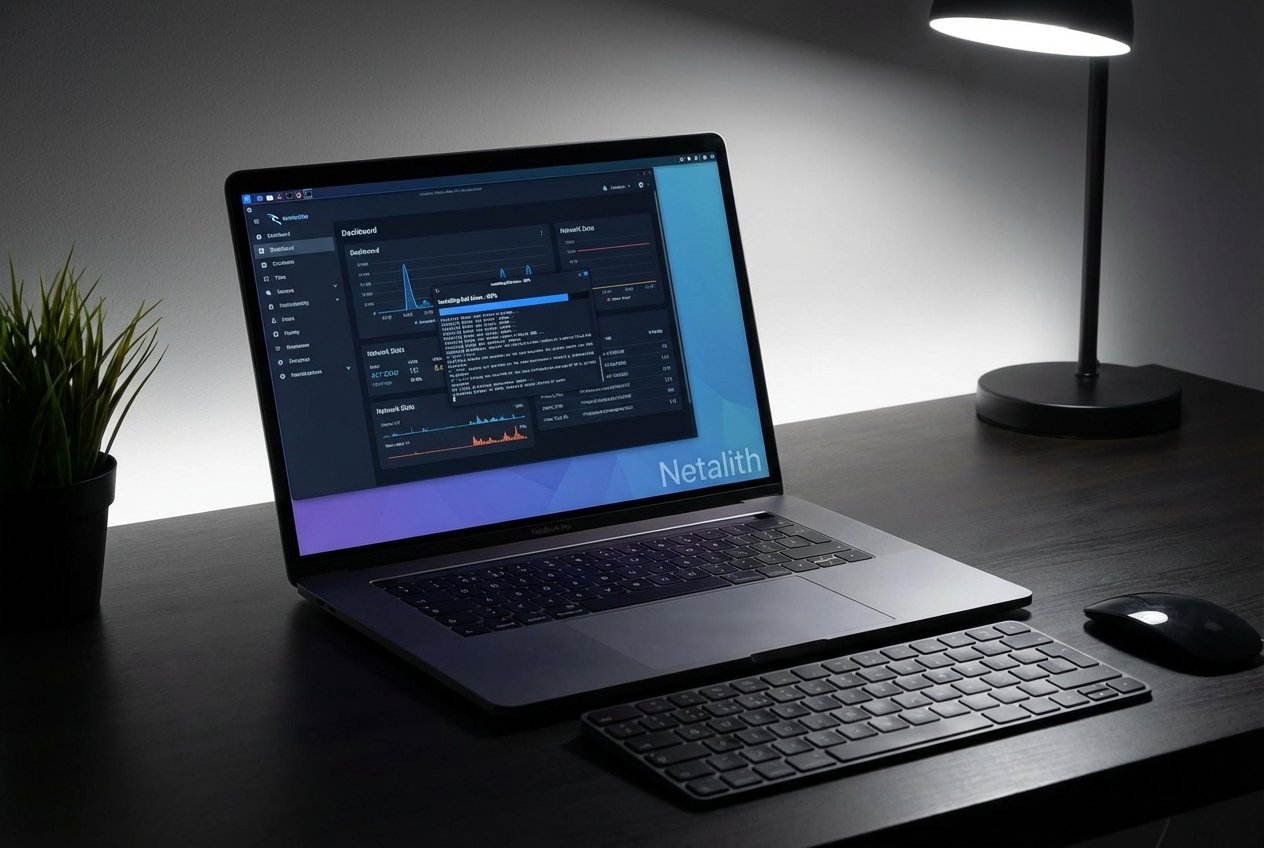
Kali Linux 2026 installation guide: The Ultimate Kali Linux Installation Guide
Welcome to the definitive Kali Linux 2026 installation guide. Whether you are an aspiring cybersecurity professional, an IT student, or a seasoned enthusiast, mastering your VirtualBox setup is the first step toward building a secure, isolated environment for practicing penetration testing basics. By leveraging virtualization, you can explore security vulnerabilities safely without risking your primary hardware or data integrity.
This comprehensive Kali Linux setup guide will walk you through deploying the industry-standard penetration testing operating system on Oracle VM VirtualBox. From downloading the required files to executing your first security scan, we have tailored this walkthrough to ensure a smooth, error-free deployment on your host operating system.
Throughout this Kali Linux setup guide, we will cover system prerequisites, virtual machine settings, and essential post-installation tweaks. Let’s dive right in and get your ethical hacking lab operational.
Prerequisites and System Requirements for Kali Linux
Before initiating the deployment, it is crucial to verify the minimum system requirements for Kali Linux. Because you are running a virtualized environment, your host operating system must have adequate hardware resources to share with the virtualization software without causing system-wide lag.
- Processor: A modern CPU with virtualization support (Intel VT-x or AMD-V enabled in BIOS/UEFI).
- Memory (RAM): At least 8 GB of total system RAM (allocating a minimum of 4 GB to the virtual machine).
- Storage: A minimum of 40 GB of free disk space on your hard drive or SSD.
- Architecture: A 64-bit architecture processor is highly recommended for optimal performance and software compatibility.
Ensuring your hardware meets these baselines will allow the virtualization software to run the security distribution seamlessly alongside your daily applications.
Step 1: Download the Kali Linux ISO Image File
The first practical phase of our Kali Linux 2026 ISO download and install guide requires obtaining the official media. You must always download the ISO image file directly from the official Kali Linux (Offensive Security) website to ensure maximum security and file integrity.
Navigate to the official download page and select the "Installer" image tailored for 64-bit architecture. This complete offline installer is the most stable choice for a traditional Kali Linux install. It comes pre-packaged with a vast repository of essential Kali Linux tools, meaning you will not have to download gigabytes of packages during the initial setup.
Step 2 & 3: Set Up and Configure Virtual Machine Settings
With your ISO file ready, it is time to open Oracle VM VirtualBox. This section serves as a comprehensive setting up Kali Linux virtual machine 2026 tutorial. Proper virtual machine settings are vital for network stability and graphical performance.
- Open VirtualBox and click New to create your Kali VM configuration.
- Name the machine "Kali Linux 2026", set the Type to "Linux", and Version to "Debian (64-bit)".
- Allocate at least 4096 MB of RAM and 2 CPU cores in the system parameters.
- Create a dynamically allocated Virtual Hard Disk (VDI) with at least 40 GB of space.
As you follow this Kali Linux setup guide, make sure to visit the "System" settings in VirtualBox to verify your secure boot configuration is disabled for this specific VM. If you are following a Kali Linux 2026 VirtualBox installation guide for windows 11, these parameters integrate perfectly with the Windows 11 hypervisor stack (WHPX).
Step 4: Boot and Install Kali Linux
Learning how to install Kali Linux 2026 on VirtualBox step by step requires careful attention during the initial boot sequence. Mount the downloaded ISO image into the virtual optical drive of your newly created machine, and click Start.
Continuing with our Kali Linux setup guide, select "Graphical Install" from the boot menu. The wizard will guide you through selecting your language, location, and keyboard layout. When prompted for network configuration, enter a distinct hostname and leave the domain name blank unless you are part of a specific lab environment.
During the disk partitioning stage of this Kali 2026 tutorial, choose "Guided - use entire disk." This is the safest method when installing Kali on virtual machine setups, as it automatically formats the virtual drive without affecting your host OS. After the base system installs, the GRUB bootloader prompt will appear. Install it to your primary virtual drive (usually /dev/sda). Once complete, reboot the system to begin using Kali Linux terminal commands.
Step 5: Post-Installation and Guest Additions Installation
A professional Kali Linux setup guide isn't complete without post-installation optimization. To unlock full-screen resolutions, shared clipboards, and drag-and-drop capabilities, you must perform a guest additions installation.
Open your terminal and update your package repositories by typing:
sudo apt update && sudo apt full-upgrade -yOnce updated, install the necessary integration packages for your virtualization software:
sudo apt install -y virtualbox-guest-x11Reboot your virtual machine. Upon logging back in, your graphical interface will automatically resize, vastly improving your workflow and completing the core deployment phase.
Frequently Asked Questions
What are the minimum system requirements for Kali Linux ?
To run Kali effectively in a virtual machine, you need at least 4 GB of RAM allocated to the VM (8 GB total host RAM), 40 GB of storage space, and a multi-core 64-bit processor with hardware virtualization (VT-x/AMD-V) enabled.
Why is my Kali Linux VM running slow in VirtualBox?
Sluggish performance is usually caused by inadequate resource allocation or missing guest additions installation. Ensure you have assigned at least 2 CPU cores, increased the Video Memory to 128 MB under Display settings, and enabled 3D acceleration.
How do I install VirtualBox Guest Additions on Kali Linux?
Simply open your terminal, update your system using sudo apt update, and execute sudo apt install -y virtualbox-guest-x11. Reboot your virtual machine to apply the graphical and shared-folder enhancements.
Can I install Kali Linux on Windows 11 using VirtualBox?
Yes, this Kali Linux setup guide is fully compatible with Windows 11. Ensure that features like Hyper-V or Core Isolation do not conflict with VirtualBox's virtualization engine for the best performance.
Conclusion: Ready for Ethical Hacking
You have successfully completed this Kali Linux 2026 installation guide. By setting up Oracle VM VirtualBox, configuring your system parameters, and finalizing the graphical enhancements, you have established a robust, isolated environment for your cybersecurity journey.
This setup provides the perfect foundation to dive into an ethical hacking tutorial 2026. As you transition from deployment to active learning, focus on discovering how to use Kali Linux for beginners by exploring the bundled security tools and practicing penetration testing basics safely. Bookmark this Kali Linux 2026 installation guide for future reference, and keep your system updated to defend against the latest threats.