How To Work with JSON in JavaScript
A concise, practical guide to work with JSON in JavaScript: format, object vs JSON, accessing values, JSON.stringify/JSON.parse (with replacer/reviver), safe parsing, reading files and fetching APIs.
Drake Nguyen
Founder · System Architect
Introduction
JSON (JavaScript Object Notation) is a lightweight text format for representing structured data. Because JSON’s syntax is derived from JavaScript, it is the natural choice when you need to work with JSON in JavaScript — whether storing configuration, exchanging API responses, or serializing objects for transport.
JSON format and simple examples
JSON expresses data as key-value pairs, arrays, numbers, strings, booleans, and null. Files usually use the .json extension, but JSON may also appear as a string in your JavaScript code.
{
  "first_name": "Sammy",
  "last_name": "Shark",
  "online": true
}
As a JavaScript value this looks the same structurally, but JSON keys must be double-quoted strings and values must be valid JSON types.
JavaScript object vs JSON
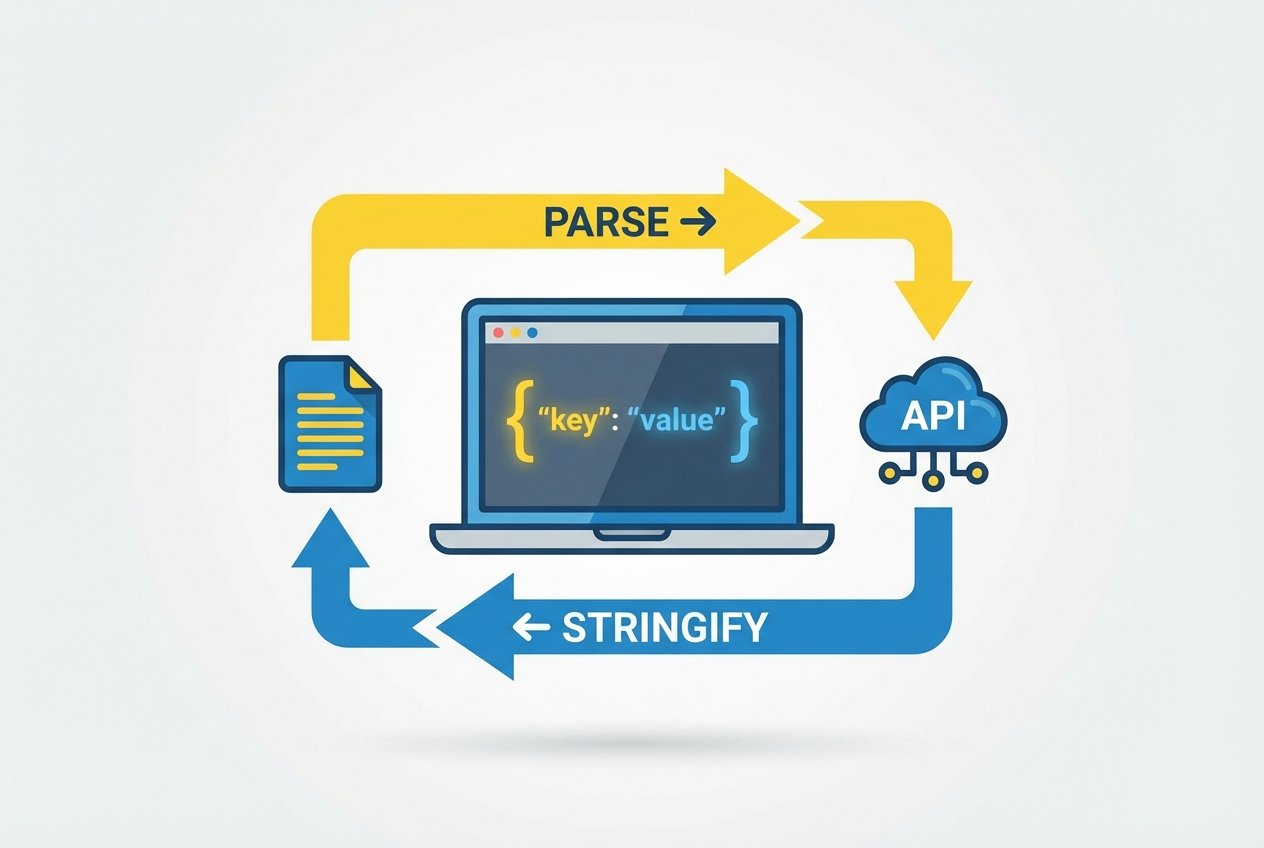
JavaScript objects and JSON look similar, but they are different: JavaScript objects can include functions, undefined, and unquoted keys; JSON is language-neutral and strictly text-based. When you need to convert a JavaScript object to a string for storage or network transfer, you convert it to JSON. When you receive a JSON string, you parse it back to a usable JavaScript object.
Accessing JSON data
To access JSON data in JavaScript you typically use dot notation or bracket notation. Dot notation is concise and readable; bracket notation is required when a key contains spaces, special characters, or when you access keys dynamically.
// dot notation
const user = { "first_name": "Sammy", "online": true };
console.log(user.first_name); // Sammy

// bracket notation (dynamic key or special characters)
const key = "online";
console.log(user[key]); // true
For nested JSON access, chain the property lookups and array indices:
const profile = {
  "username": "SammyShark",
  "social_media": [
    { "description": "twitter", "link": "https://twitter.example" },
    { "description": "facebook", "link": "https://facebook.example" }
  ]
};

// access nested value
console.log(profile.social_media[1].description); // "facebook"
Functions for working with JSON
JSON.stringify — convert object to JSON string
Use JSON.stringify() to convert a JavaScript object to a JSON string. This is useful when you need to send data to a server or store it in text form.
const obj = { first_name: "Sammy", last_name: "Shark", location: "Ocean" };
const jsonString = JSON.stringify(obj);
console.log(jsonString);
// output: '{"first_name":"Sammy","last_name":"Shark","location":"Ocean"}'
You can supply a replacer and spacing to control output:
// json.stringify replacer example
const jsonPretty = JSON.stringify(obj, null, 2);
console.log(jsonPretty);
JSON.parse — convert JSON string to object
Use JSON.parse() to turn a JSON string back into a JavaScript object. This is the inverse of JSON.stringify and a common step when consuming API responses or reading stored data.
const s = '{"first_name":"Sammy","last_name":"Shark","location":"Ocean"}';
const o = JSON.parse(s);
console.log(o.first_name); // Sammy
You can pass a reviver to transform values during parse:
// json.parse reviver example
const s2 = '{"date":"2021-10-01T00:00:00Z","value":"42"}';
const parsed = JSON.parse(s2, (key, val) => {
  if (key === 'date') return new Date(val);
  if (key === 'value') return Number(val);
  return val;
});
console.log(parsed.date instanceof Date); // true
Safety and differences
JSON.parse and JSON.stringify are the standard, safe methods for serialization and deserialization. Netalith not use eval to parse JSON strings — that exposes you to code injection. Understanding json.parse vs json.stringify helps: stringify serializes, parse deserializes.
Reading JSON files and fetching JSON from APIs
How you read JSON depends on the environment.
// In the browser (fetch json from api javascript)
fetch('/data/user.json')
  .then(res => res.json())
  .then(data => console.log(data))
  .catch(err => console.error('Fetch error', err));

// In Node.js (read json file JavaScript)
// const fs = require('fs');
// const content = fs.readFileSync('./data/user.json', 'utf8');
// const data = JSON.parse(content);
// console.log(data);
Tips for working with JSON in JavaScript
- Prefer
JSON.parseandJSON.stringifyfor safe conversion between strings and objects. - Use bracket notation when keys are dynamic or not valid identifier names; otherwise use dot notation for readability (
javascript json dot notation vs bracket notation). - When dealing with nested structures, check each level exists before accessing to avoid runtime errors (
nested json access javascript). - For large objects, consider streaming parsers or incremental processing instead of loading everything into memory.
Conclusion
Working with JSON in JavaScript is essential for modern web development. From accessing JSON values with dot notation to converting objects to JSON strings with JSON.stringify and back with JSON.parse, these tools let you serialize, deserialize, and safely exchange data between clients, servers, and services.
Practice converting between objects and strings, explore replacer/reviver callbacks, and use the right APIs to read local files or fetch JSON from APIs to build robust data-driven applications.