How to Dynamically Import JavaScript with Import Maps
Guide to JavaScript import maps: map specifiers to CDN URLs, use ES modules and dynamic import, and fall back to SystemJS with rollup system builds for cross-browser support.
Drake Nguyen
Founder · System Architect
Introduction
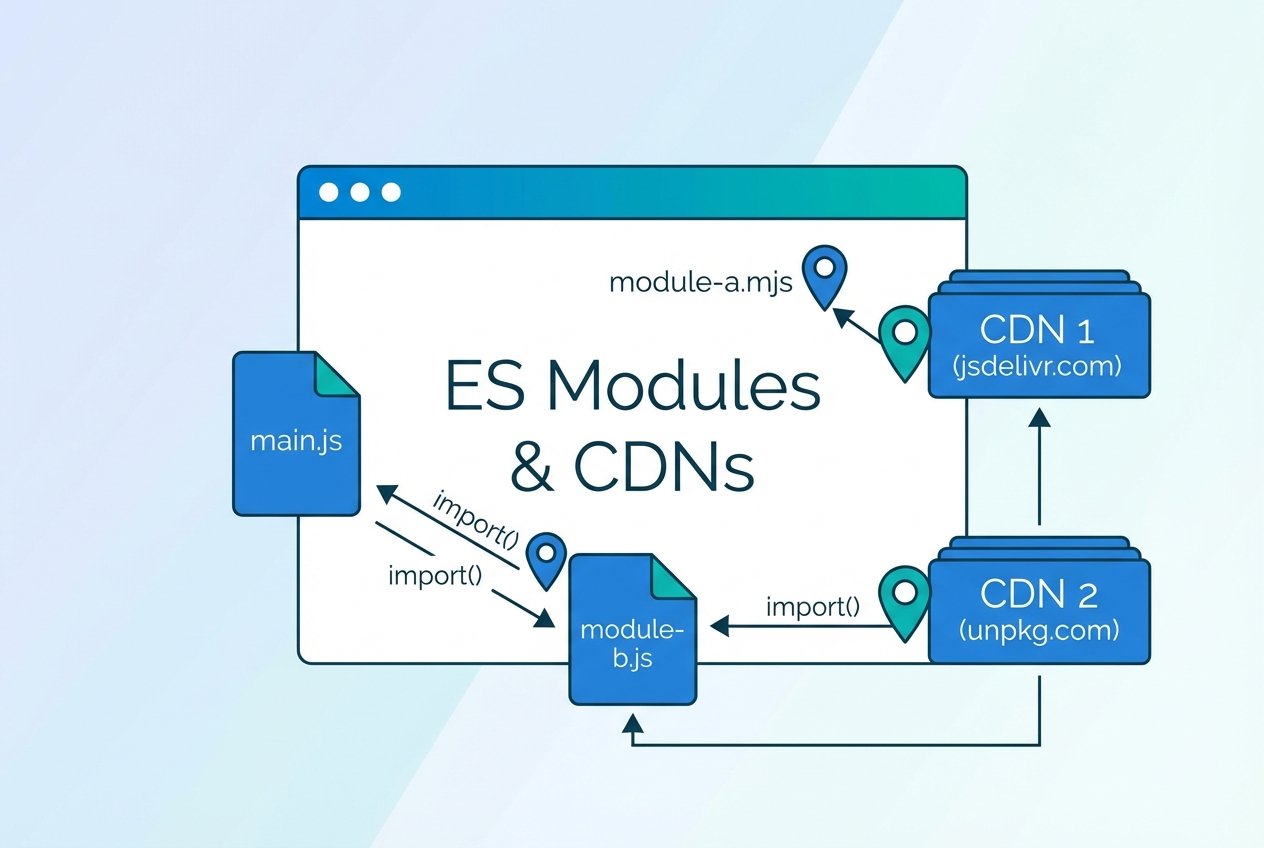
JavaScript import maps let modern browsers resolve bare module specifiers to real URLs so you can load packages without a traditional bundler. This approach works with ES modules and supports lazy loading via dynamic import, enabling smaller initial downloads and simpler bootstraps for apps and microfrontends.
What you'll learn
- How to use JavaScript import maps to map module specifiers to CDN URLs
- How to run ES modules natively in the browser and use dynamic import JavaScript with import maps
- How to apply a SystemJS import map for cross-browser compatibility and a rollup systemjs build for UMD libraries
Prerequisites
- Basic familiarity with JavaScript modules and HTML
- A local development server (for example, using
npx serve) - Node.js and npm available for optional build steps (used when creating a SystemJS bundle with Rollup)
Step 1 — Create a minimal HTML page and a script
Start with a plain HTML file that loads a small JavaScript module. Use the type="module" attribute so the browser treats the file as an ES module.
Hello
// hello.js
const el = document.createElement('h1')
const words = 'hello, world'
el.textContent = words
document.body.appendChild(el)
Open the page with a local server. Modules execute after parsing, so using type="module" avoids timing issues that can occur with inline or deferred scripts.
Step 2 — Switch to ES imports and understand the module specifier problem
Replace the hard-coded text with a function imported from a package. For native browser modules you import by specifier, for example lodash-es. However, browsers need to know how to resolve the bare module specifier.
// hello.js (using ES imports)
import startCase from '@lodash/startCase'
const el = document.createElement('h1')
const words = 'hello, world'
el.textContent = startCase(words)
document.body.appendChild(el)
Without an import map the browser will throw a resolution error because the module specifier is not a URL or a relative path. That is where JavaScript import maps come in.
Step 3 — Define an import map that points specifiers to URLs
An import map is a small JSON-like object placed in a <script type="importmap">. It maps names like @lodash/startCase or package names to CDN-level URLs such as the unpkg CDN. This enables native browser modules to import packages directly from a CDN without bundling.
With that import map in place the earlier import call resolves to the specified file and the browser will fetch only the modules that your code actually imports. This is a simple, white-hat way to load npm packages in the browser without a bundler.
Note: Native import maps are supported in recent Chromium-based browsers. For broader support, use a polyfill or SystemJS as shown below.
Step 4 — Cross-browser support with SystemJS and a rollup System build
Many libraries are distributed as UMD or CommonJS. To use them with import maps in every browser, SystemJS can interpret a special import map type and load different module formats at runtime.
Typical flow:
- Write ES module source that imports a named package (e.g.,
import { startCase } from 'lodash'). - Use Rollup to output a SystemJS-compatible bundle and keep heavy dependencies external.
- Provide a
systemjs-importmapand include the SystemJS loader from a CDN.
// rollup.config.js (essential bits)
export default {
  external: ['lodash'],
  input: ['hello.js'],
  output: [{ dir: 'public', format: 'system', sourcemap: true }]
}
After building, expose the generated file in the import map and load SystemJS:
This pattern lets you serve a system bundle for browsers that don’t support native import maps while keeping the lazy-loading semantics: dependencies are only fetched when the runtime requests them.
Best practices and tips
- Pin exact versions in your import maps to avoid unexpected upstream changes and to support dependency versioning.
- Prefer ES module builds (like
lodash-es) for smaller, tree-shakeable loads when using native browser modules. - Use scoped import maps for multi-app setups or microfrontends to provide different dependency versions to different parts of a page.
- Combine import maps with dynamic import to lazy-load infrequently used code paths.
Conclusion
JavaScript import maps unlock a simpler way to load modules directly in the browser, letting you map module specifiers to CDN URLs and use dynamic import for on-demand loading. For full cross-browser compatibility, SystemJS and a rollup system build offer a practical fallback. Together these techniques enable rapid prototyping, targeted lazy loading, and new microfrontend patterns without immediate reliance on a heavy bundler.
Further reading
- Explore native import maps, package maps, and scoping to manage complex dependency graphs.
- Experiment with the unpkg CDN and
lodash-esto practice importing ESM packages in the browser. - Try a JavaScript import maps tutorial that includes dynamic import map examples and SystemJS import map usage for broader browser support.